Add Task Results to a Task Result Set
This section will discuss how to add result codes to a task result set.
|
|
 PREREQUISITES:
To add a new task result to a task result set, follow these steps:
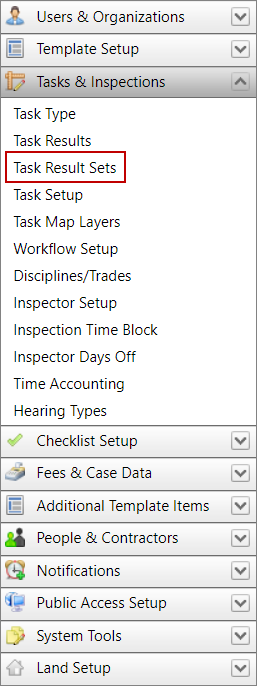
- Click Tasks & Inspections on the PLL Admin menu panel and select Task Result Set.
- On the Task Results Set panel, click the plus icon next to the task result set you want to add a task result to.
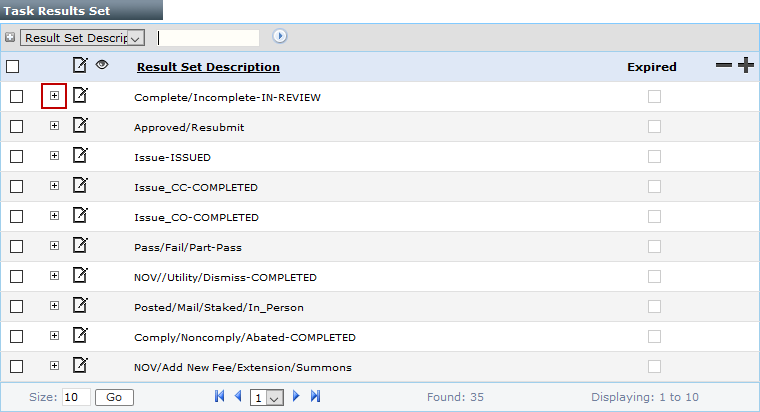
 NOTE: Search or filter the records on this panel to quickly find the one(s) you want. See Search and Filter Records for more information.
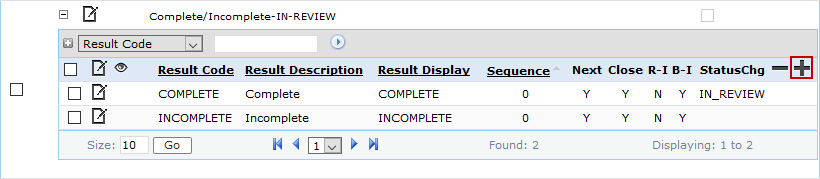
- When the result set sub panel opens, click Add record at the right side of the sub panel.
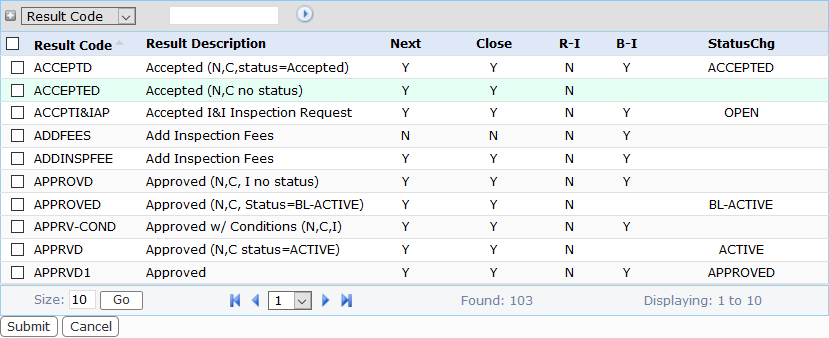
- On the Add : Task Result Detail panel, click Lookup to open a selection window.

- Select the check box next to the result code you wish to add, then click Submit.
- Enter a numerical value in the Result Sequence field.

NOTE: The number in this field represents the order in which the task result will appear within the result set.
- Click Save.