Add a Task Result
This section discusses how to add a new task result.
|
|
 PREREQUISITES:
To add a new user to Cityworks PLL, follow these steps:
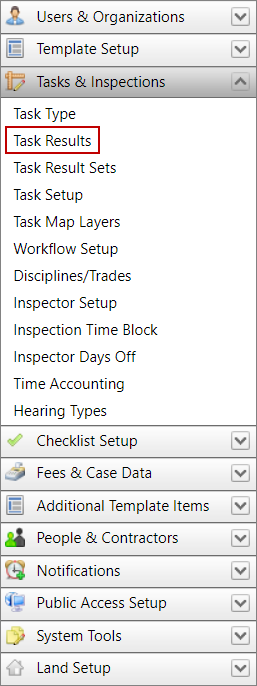
- Click Tasks & Inspections on the PLL Admin menu panel and select Task Results.
- On the Task Results panel, click Add record near the upper, right-hand corner.
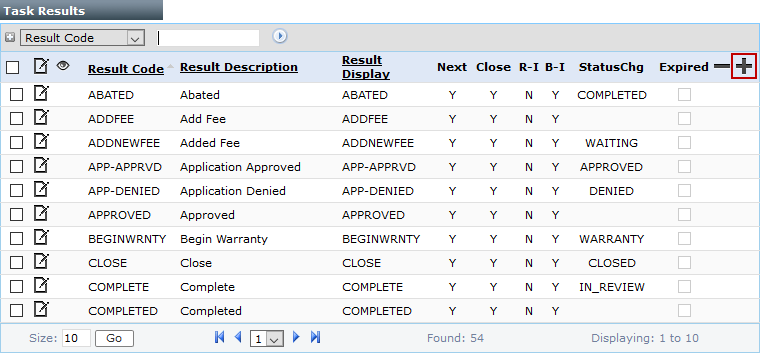
 NOTE: Search or filter the records on this panel to quickly find the one(s) you want. See Search and Filter Records for more information.
- On the Add: Task Results panel, enter a 10-character (maximum) code in the Result Code field and a brief explanation of the code in the Result Description field.
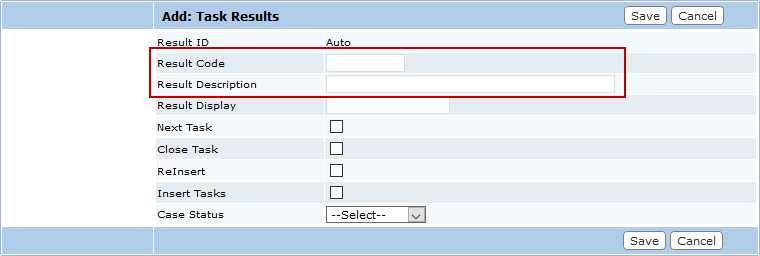
 IMPORTANT: The Result Code must be unique.
- In the Result Display field, enter the text that will appear on the case summary when the result is selected.
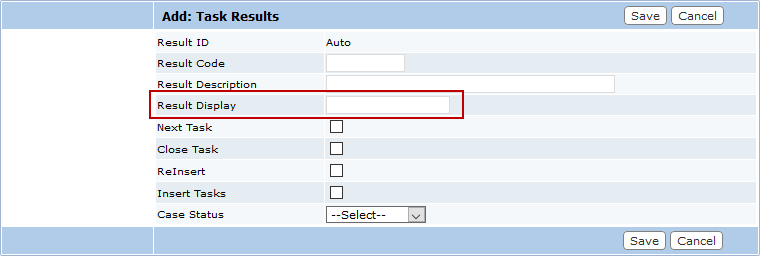
NOTE: The Result Display field does not need to be unique. Many different task results may use the same display text.
- Use the check boxes to select which actions will occur when this result code is activated.
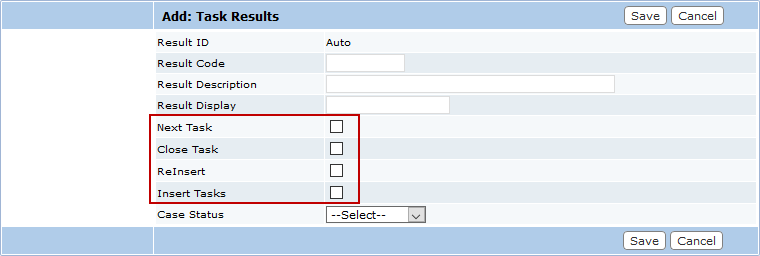
- Next Task: Select this check box if the result code will cause the workflow to proceed to the next task. However, if the task needs to span multiple milestones, the workflow setup must also be adjusted to advance the workflow to the next tasks.
- Close Task: Select this check box to close the current task.
- ReInsert: Select this check box to reinsert the current task into the workflow as the next task.
- Insert Tasks: Select this check box if the result code will insert a different task or group of tasks into the workflow.
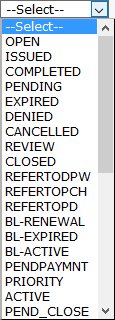
- Use the Case Status drop-down list to select the case status the result code will activate when chosen. If you do not select a case status from the drop-down list, the result code will not change the status of the case.
- Click Save.