Remove a User Profile
A user may need to be removed from the system from time to time. Doing so must be done carefully or could cause errors. This section will discuss how to remove a user safely.
|
|
 PREREQUISITES:
 IMPORTANT: While it is possible to delete a user profile, we strongly discourage you from doing so. Deleting a user will cause errors in any cases that the user was associated with.
If a user has not been associated with one or more cases, for example if the user's profile was configured incorrectly or if the profile was created for one position and then the employee took a position in another part of the organization, you can delete it by following these steps:
- Click Users & Organizations on the PLL Admin menu panel and select Users.
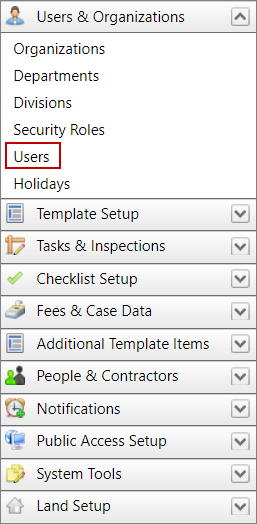
- On the Users panel, select the check box next to the user you wish to remove, then click Delete record at the top of the panel.

 NOTE: Search or filter the records on this panel to quickly find the one(s) you want. See Search and Filter Records for more information.
- A dialog box will ask you if you want to delete the selected record. Click OK.
If the user has been associated with one or more cases, follow these steps to mark the profile as expired:
IMPORTANT: Open cases assigned to a user that has been expired can no longer be opened. Before expiring a user, any open cases should be reassigned to another user.
- Click Users & Organizations on the PLL Admin menu panel and select Users.
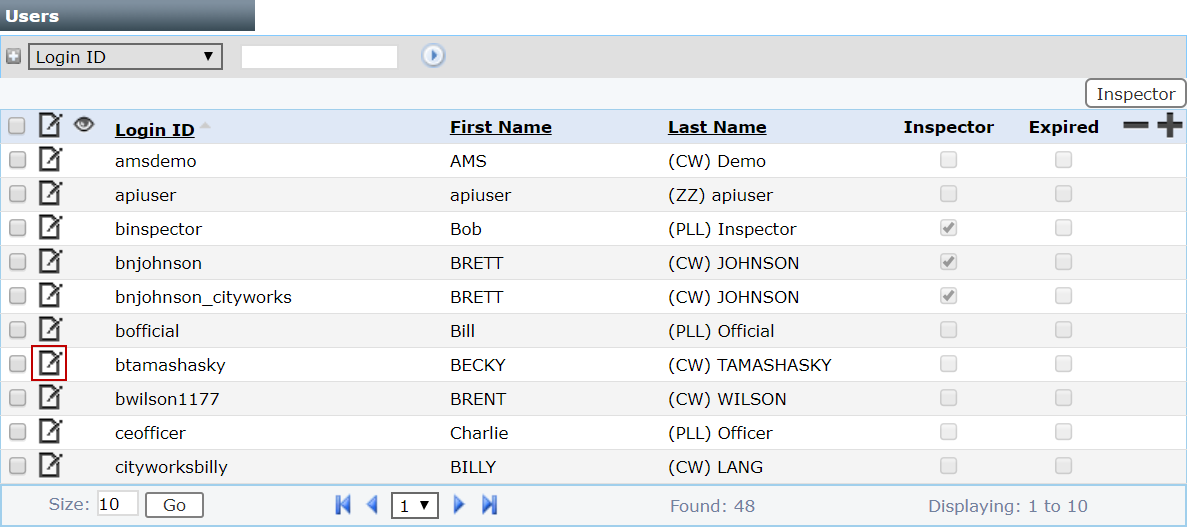
- On the User panel, click the Edit icon next to the user you wish to remove.
- When the Edit: Users panel opens, select the Expired check box.
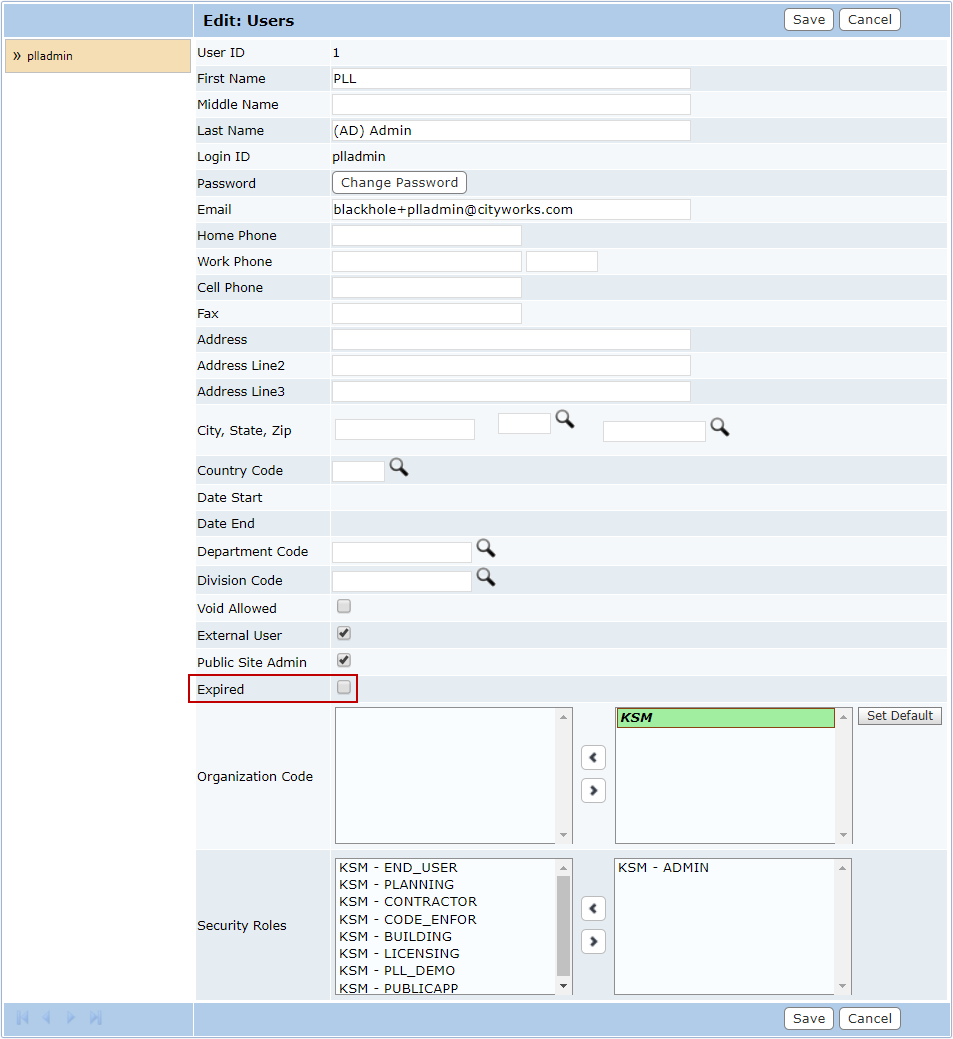
- Click Save.