Add a Detail to a Case Data Group
This section will discuss how to add detail codes to data groups.
|
|
 PREREQUISITES:
To add a detail code to a case data group, follow these steps:
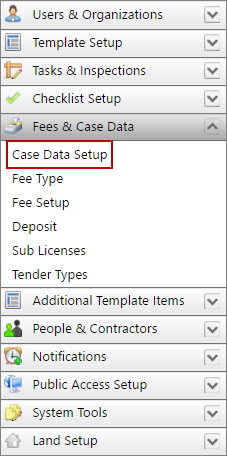
- Click Fees & Case Data on the menu panel and select Case Data Setup.
- On the Data Groups Setup panel, click the plus icon next to the data group of your choice.
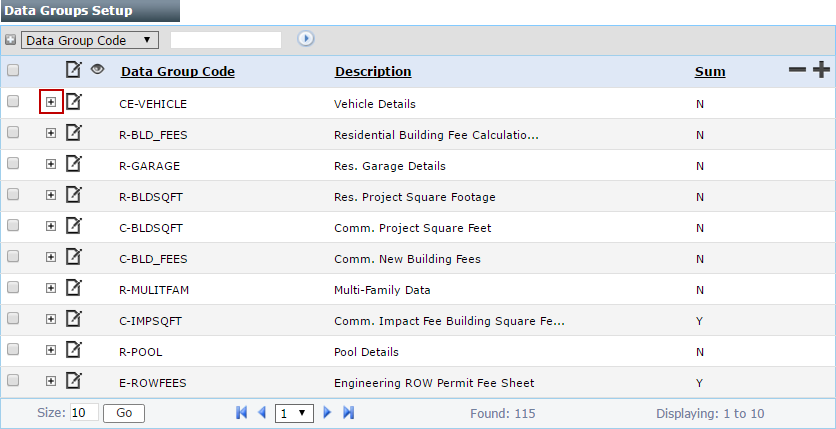
 NOTE: Search or filter the records on this panel to quickly find the one(s) you want. See Search and Filter Records for more information.
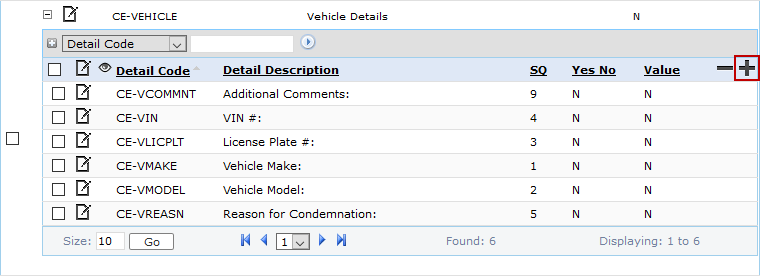
A new sub panel appears below the data group you selected. This sub panel will list all data detail currently associated with the data group.
- On the sub panel, click Add record at the far right.
- On the Add: Case Data Group panel, entering a code (10 characters maximum) and brief description of the detail in the appropriate fields.

- Enter a number in the Detail Sequence field. This number will determine what position the detail will occupy if there are more than one details in the data group.
- Select the Calc Rate check box to indicate that the value associated with this detail should be included in any calculations based on the data group.
The Rate and Quantity fields are closely related and apply only to the Value Flag. The rate and quantity will be multiplied together to produce a value that can be used to calculate fees.
- Enter a rate (multiplier) for the item associated with this data detail in the Rate field.
- Use the Quantity field to enter a default quantity for the item in question.
- Click Select File to upload any relevant images to the data detail.
 IMPORTANT: Before you can select an image using the Select File button, you must define a value for the CUSTOM_IMAGES_LOCATION key in the WebAppSettings.config file.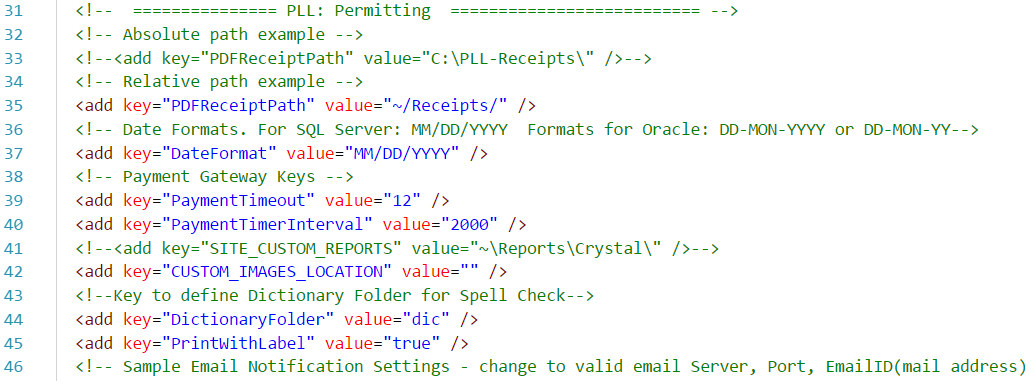
The path you enter in the Value attribute must be an absolute file path.
- Select the Required at Intake check box to make this detail a required item on the Application Input page.
- Select the Show Yes/No as Checkbox check box if you would like yes/no questions to appear as check boxes instead of option buttons.
- Select the GIS Update Only check box if you want to automatically populate this field with data from the GIS.
NOTE: When this check box is selected, users cannot enter values manually for this field. This field will be populated automatically when the user attaches a configured asset to the case. See Configure GIS Data Fields in the Admin 2.0 Guidefor more information.
- To assign case data flags to the detail, select the flag(s) you wish to add from the Available Items field, then click the >> button. This will move the flag(s) to the Selected Items box.
IMPORTANT: Value flags are the only flag type that can be used to calculate fees.
- To create items for a drop-down list (using the List Value Flag), type the item in the List Values field and click Add record.
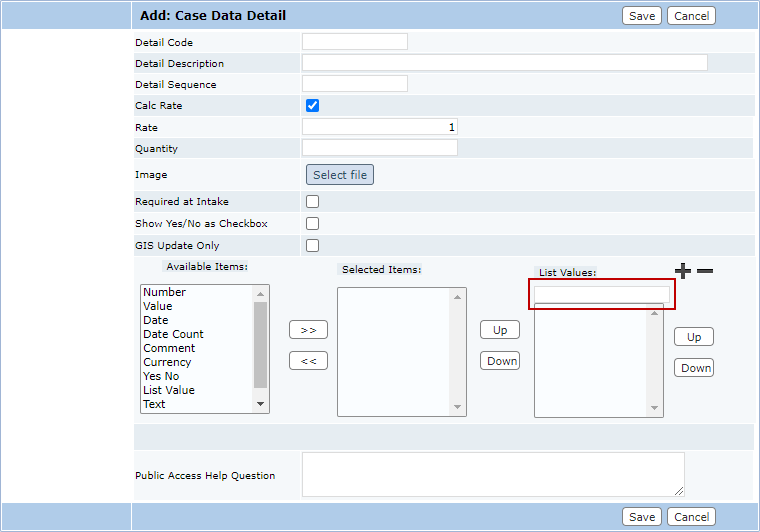
- In the Public Access Help Question field, provide any information about this data detail that might be useful or helpful to Public Access users.
- Click Save.

