Geo Area Setup
This section allows administrators to divide the map into sections, or geographic areas, based on a key characteristic. Each area uses a different variable to subdivide the map, such as slope, soil type, development, etc. In general, there are two categories of geo area: natural features and artificial constructs.
Select Geo Area Setup from the Land Setup menu to display a list of all the areas currently in the system. From this list, administrators have the option to add a new area or edit, expire, or delete existing areas.
 NOTE: It is a best practice never to delete an area after it has been created; instead, mark it as Expired to avoid corrupting any information that may be tied to that geo area.

Add and Edit a Geo Area
- Click Add record at the top right corner of the panel to create a new geo area.
- Click Edit record next to the name of an existing area to view or edit the current information for that area.

- Geo Area ID: This is a numeric identifier that is automatically assigned after the area is saved. This box cannot be changed.
- Geo Area: This is a 10-character identifier created by the administrator. This code appears in lists and drop-down boxes and allows users to distinguish one geo area from another. This box cannot be changed once the area has been saved.
- Description: This is a brief explanation of the geo area. Descriptions are often just a more detailed version of the geo area name or code, but administrators may include more exact information if they desire.
- GIS Code: This box ties the geo area to a specific location (or locations) on the map
- Expired: This check box, available only on the Edit: Geographic Area Setup panel, marks the geo area as expired on the main Geo Area Setup panel.
Add and Edit Geo Area Details
Once a geo area has been created, the administrator needs to create subcategories that can be used to divide up the map. To do this, select the plus icon next to the geo area to see its expanded view.
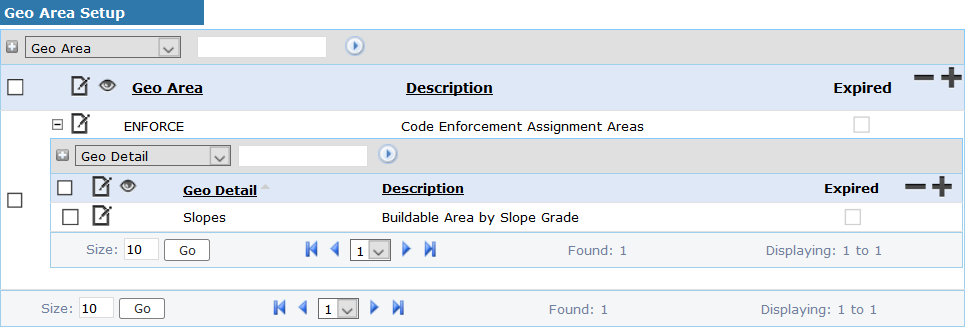
On a brand new geo area, this section is empty, but on existing geo areas it displays a list of all the subcategories (or ‘details’) associated with the geo area. Here, administrators may add new details or edit, delete or expire existing details.
NOTE: It is a best practice never to delete a detail. Instead, mark it as Expired to avoid corrupting any information that may be tied to that detail.
- Click Add record at the top right corner of the panel to create a new detail.
- Click Edit record next to the name of an existing detail to view or edit the current information for that detail.

- Geo Area: This box is automatically populated with the code of the selected group after the new detail is saved. This cannot be changed.
- Geo Detail: This is a 10-character identifier for the detail. It appears in lists and drop-down boxes to identify it from other details.
- Description: This is a brief explanation of the geo area detail. Descriptions are often just a more detailed version of the detail name, but administrators may include more exact information if they desire.
- Expired: This check box, available only on the Edit: Geographic Area Detail panel, marks the geo area detail as expired on the main geo area details panel.