Completing the Export in PAVER
After exporting the Cityworks data into PAVER and before analyzing the pavement data, run these database verification tools found in PAVER.
 IMPORTANT: Save a backup of the PAVER database.
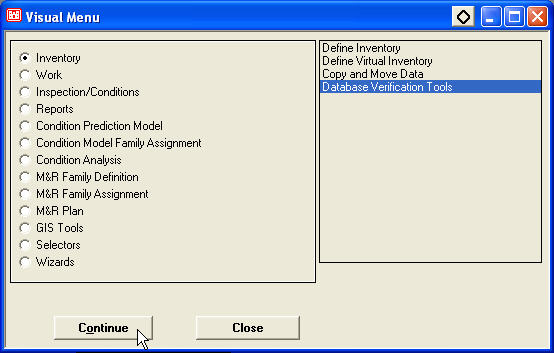
- Open PAVER and click the Visual Menu button.
 NOTE: Refer to PAVER documentation for more information on their verification tools.

- Double-click Data Verification Tools (or click once and click Continue).
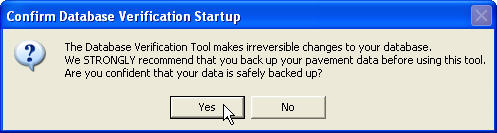
The warning Confirm Database Verification Startup opens. If a backup of the data hasn’t been made, click No and make one as irreversible changes will be made to the PAVER database to reflect the information exported from Cityworks. Once there is a backup, click Yes to continue.
- Click Select All to select the following boxes on the Database Verification Tools window:
- Verify branch data and remove duplicate section data
- Verify section construction history
- Verify/reset latest inspection indicators
- Check for duplicate Major M&R and duplicate inspections
- Verify work [required/history] descriptions
- Verify inspection samples and cached inventory data
- Report sections with missing data for PCI calculation
- Report missing system table information
- Change duplicate or blank use and surface names
- Verify distresses/recalculate conditions for all sections (version 6.5.7 only)
- Recalculate surface for all sections (version 6.5.7 only)
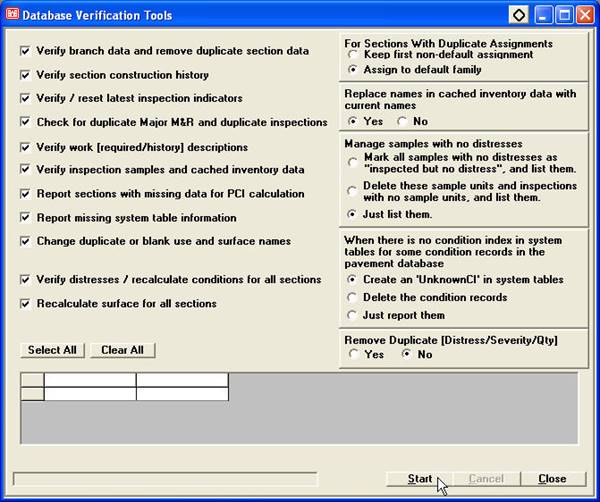
- Select the desired option For Sections With Duplicate Assignments.
- Select Yes or No for Replace names in cached inventory data with current names.
- Select an option on Manage samples with no distresses (version 6.5.7) or Mark all samples with no distresses as “inspected but no distress” (version 5.3.7 or 5.3.3).
- Select the desired option on When there is no condition index in system tables for some condition records in the pavement database.
- For PAVER 5.3.7 or 5.3.3: Select the desired option button for Remove duplicate (Distress/Severity/Qty).
- Click Start to update the database. A progress bar opens at the bottom of the form displaying the processes. When the process is done, the list of changes is noted in the box.
NOTE: The length this process takes depends on the tools selected, the number of asset records, and the speed of the computer.
- Use the scroll bar to view the information.

After running these tools in PAVER on the updated data, close out of the form and use PAVER to perform the various pavement analyses.

Documentation Feedback Form
Please give us feedback about this Cityworks guide.
If you have a feature enhancement request, please see the Ideas page on MyCityworks.
Last updated 12/19/2019.
Copyright© 2014–2019 by Azteca Systems, LLC. All rights reserved.