Add a Link to Another Application
Public Access users can create links between applications. Users can also specify if the link is a parent/child relationship or just a general relationship. This allows users to create child cases that are a different application type than the parent. See Create a New Application Based on the Current Application for more information.
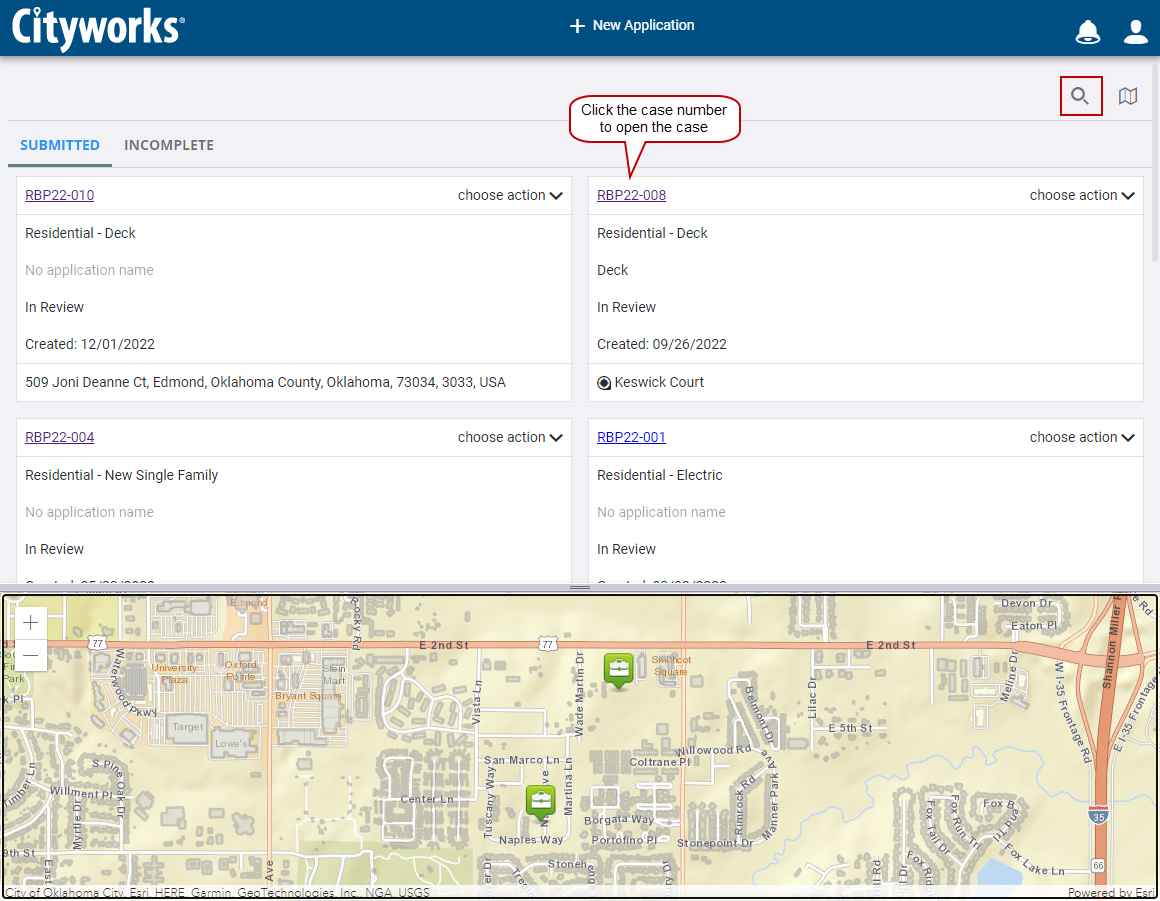
- Make sure the home page is displaying submitted applications.

- Scroll through the list of submitted applications or enter the case number in the search box at the top of the page.
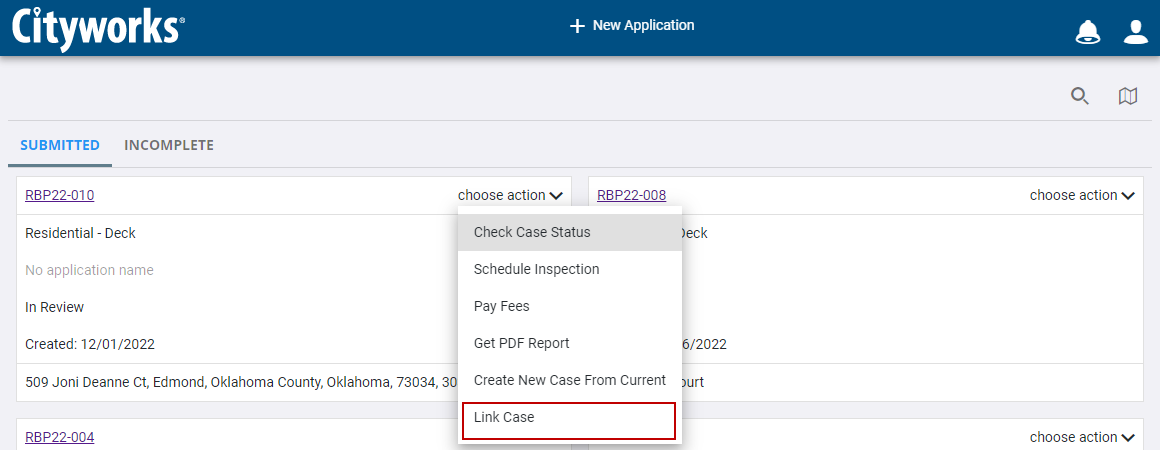
The Application field displays the number of the case you are linking from.
- On the Link Applications panel, use the Relationship drop-down list to select the kind of relationship that you wish to create between the two cases.
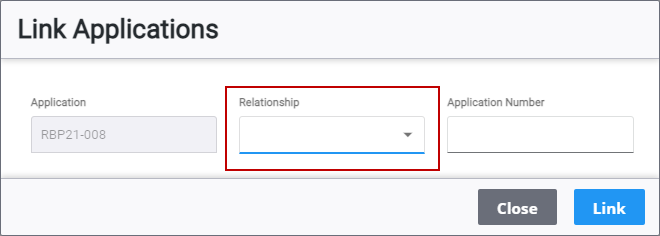
- Parent Of indicates the application you are linking from is the parent of the case you are linking to.
- Child Of indicates the application you are linking from is a child of the case you are linking to.
- Related To means there is not a parent/child relationship between the two cases but that they are still related.
- In the Application Number field, enter the number of the case you want to link to.
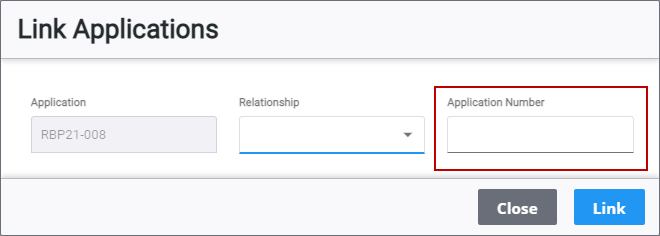
 NOTE: As you begin typing the case number, a list of cases matching what you have typed will appear. You may select the case you want from this list.
 IMPORTANT: This list only displays cases the user has permission to view. This means either the user created the case in Public Access, or the Public Access administrator has enabled case sharing. See Configure Public Access Preferences in the Admin 3.2 Guide.
The summary page for these applications includes the Related Applications panel, which lists the other applications each case is linked to.