Change Field Label Colors
You can change the color of a field label based on the theme
- Open the User menu.
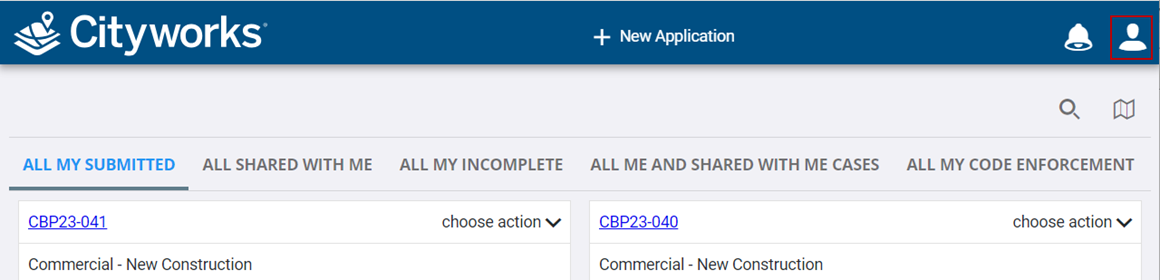
- Click Admin.
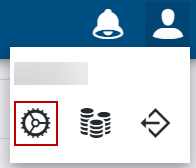
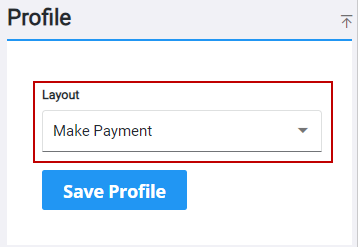
- Click the Layout tab.

- Select a page
- Within the Controls panel, select a control.
 NOTE: Field label colors can be changed on the following controls : txt (text fields), cmb (combo boxes), num (number fields), and rdo (radio buttons).
- Select the Light Theme Highlight or Dark Theme Highlight fields in the Control Details panel.
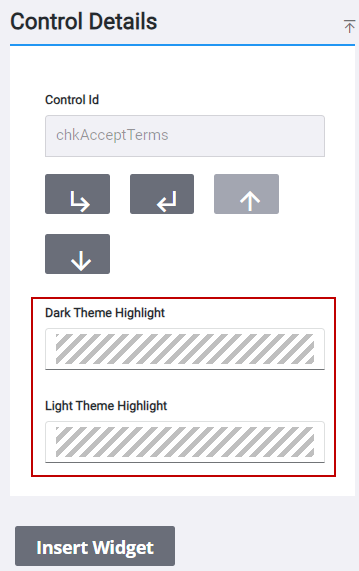
A panel opens with a color wheel.
- Select a color from the wheel or enter a HEX decimal in the field to choose a color.
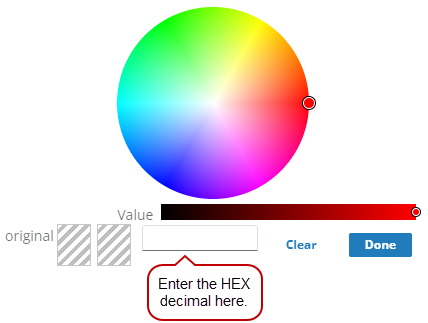
The fields update with the selected color. Now the field label color changes based on the custom theme being