Select Entity Type and Template
In the Select Entity Type panel, the Entity Group and Entity Type automatically populate based on the selected asset(s), but can be changed.
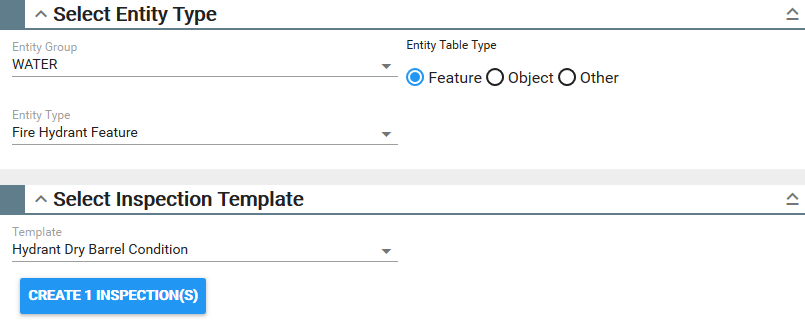
- Select the desired Entity Group. If you're creating an attached inspection, this field is automatically populated with the asset group related to the selected asset(s) on the map, but it can be changed if needed.
- Select the Entity Type. If you're creating an attached inspection, this field is automatically populated with the asset type related to the selected asset(s) on the map, but it can be changed if needed.
- Select Feature, Object, or Other. While features or objects (related tables) are found in the geodatabase, the others category allows inspection templates to be created on anything and stored in the Cityworks database.
- Select the inspection Template.
- Tap Create Inspection(s) in the Select Inspection Template panel to create the inspection.
The Open Work Activities panel displays if the selected assets have any open records attached to them.