Service Request
The Service Request panel displays all the general service request information. Some of the information in the data fields may populate by default according to the configuration set by the administrator.
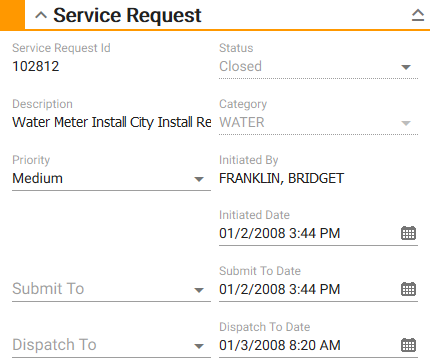
- Service Request Id: This field is automatically populated with the unique service request ID and cannot be changed.
- Status: Select the state, condition, or situation of the service request.
- Description: This field is automatically populated with the problem code selected when the service request was created. This field cannot be changed.
- Category: This field is automatically populated with the category selected when the service request was created.
- Priority: Select the order of importance for the work to be completed.
- Initiated By: This field is automatically populated with the login ID of the person who created the service request.
- Initiated Date: This field is automatically populated with the date and time it was created.
 NOTE: The Initiated Date field cannot be changed unless the Allow Changes to Initiated Date/Time check box is selected in Designer under Preferences > General.
- Submit To: Select the person to submit the service request to.
- Submit To Date: This field is automatically populated when a Submit To employee is selected. It is updated with the current date and time if the Submit To employee is changed.
- Dispatch To: Select the person to dispatch the service request to.
- Dispatch To Date: This field is automatically populated when a Dispatch To employee is selected. It is updated with the current date and time if the Dispatch To employee is changed.
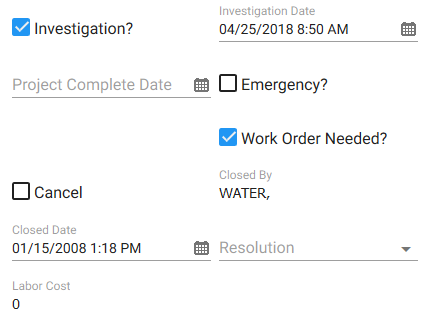
- Investigation?: Select if this request has been investigated.
- Investigation Date: Enter the date and time the service request was investigated.
- Project Complete Date: If not already populated, enter the date of the expected completion of the service request.
NOTE: The projected completion date is calculated using the Duration and Duration Units defined on the service request template in Designer. See
- Emergency?: Select if this service request is an emergency.
- Work Order Needed?: Select if a work order is required.
- Cancel: Select Cancel to cancel the service request.
- Cancel Date: If the service request is canceled, this field is automatically populated with the current date and time when the service request is saved.
- Cancel Reason: Enter the reason why the service request was canceled.
- Canceled By: This field is automatically populated with the login of the user who canceled the service request.
- Closed By: This field is automatically populated with the login of the user who closed the service request.
- Closed Date: This field is automatically populated with the date and time the service request is closed.
- Resolution: Select the final outcome of the service request. These are defined in Designer under Preferences > Service Request.
- Labor Cost: This field is automatically populated with the total cost of the labor if labor is added to the service request.