Work Order Navigation
The Work Order Edit page displays a variety of panels that may be expanded or collapsed for convenient viewing.
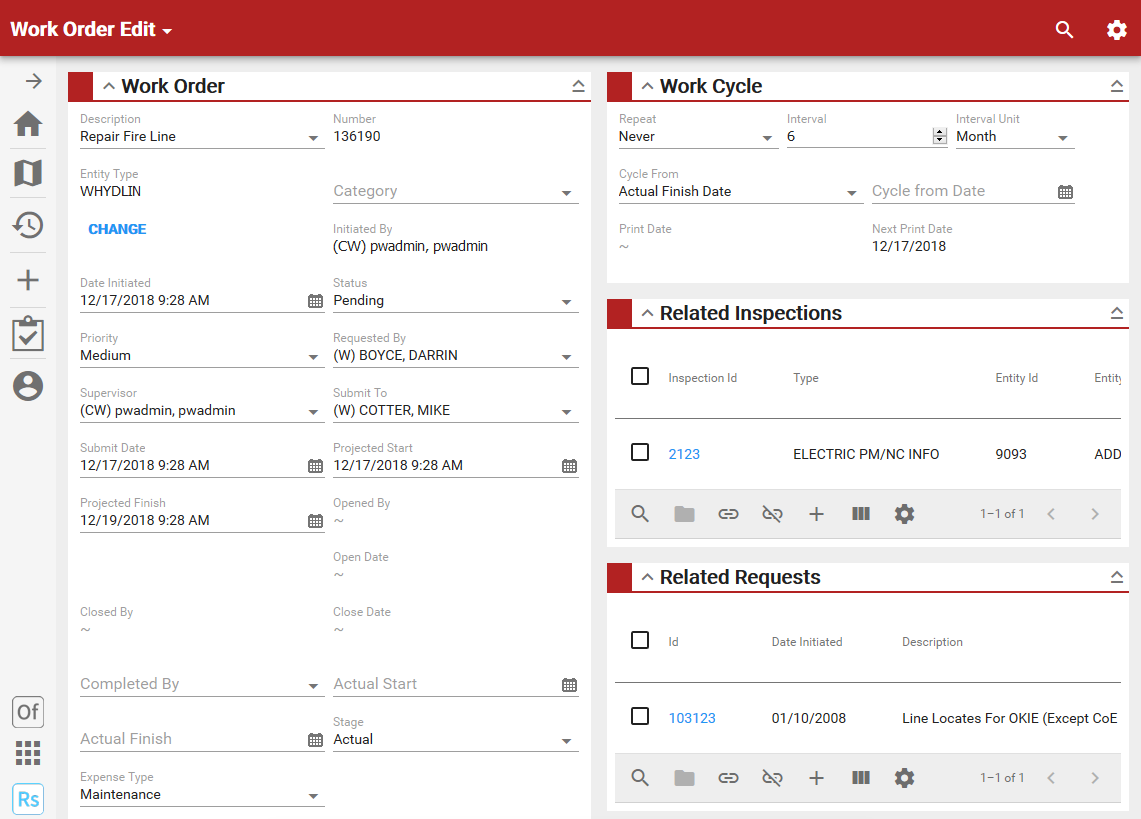
- Tap the arrow to the left of the panel name to expand or collapse the individual panel.
- To expand or collapse all panels simultaneously, tap the arrow to the far-right of any panel.
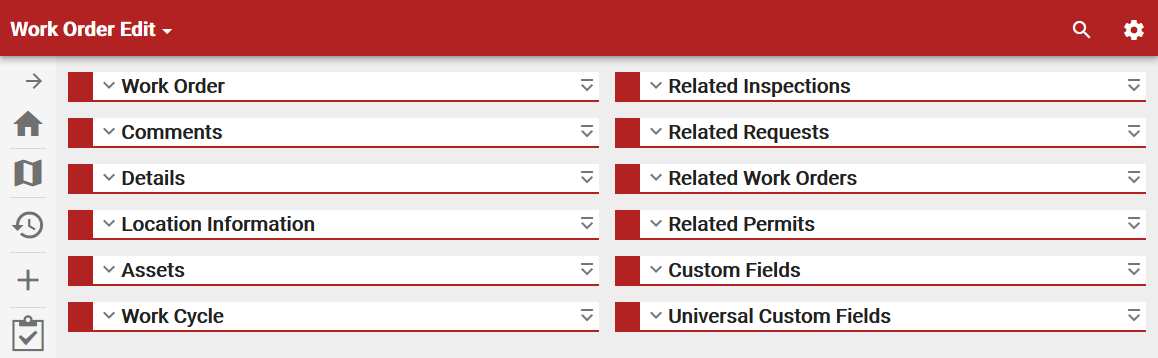
 NOTE: The panel names appearing on the Work Order Edit page are the default labels, but may be changed using Cityworks Style. See the Cityworks Style 1.1 Guide for more information.
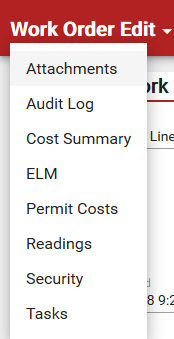
- Tap the drop-down arrow next to Work Order Edit, which provides the user with more functionality within the work order.
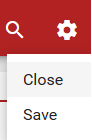
- Tap the gear icon in the upper-right corner to Save or Close the work order.
NOTE: If the work order is closed, Save and Reopen (if you have permission to reopen the work order) appear when you tap the gear icon.