Workflow Fields
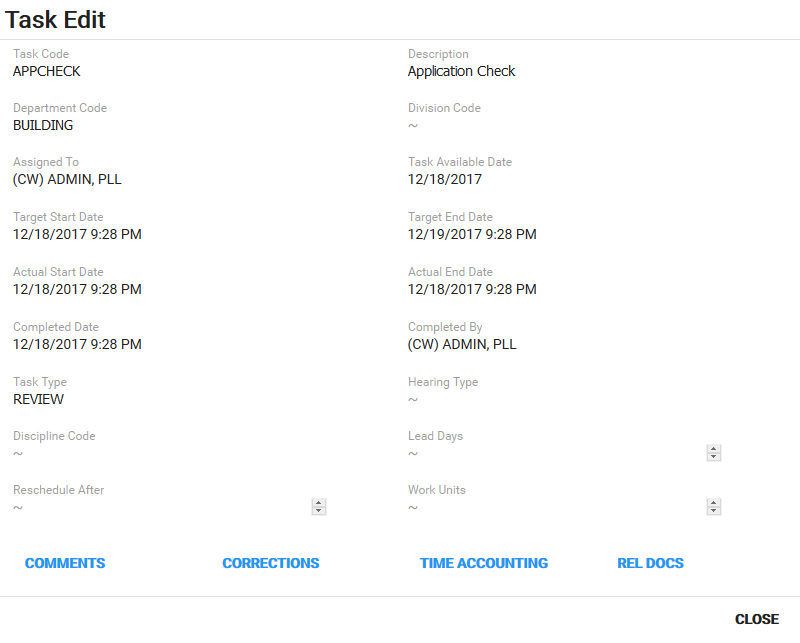
- Task Code: This is a unique identifier representing the task.
- Description: This is the description of the Task Code.
- Department Code: This field identifies the department the task is assigned to.
- Division Code: This field identifies the division the task is assigned to.
- Assigned To: Select the employee assigned to the task.
- Task Available Date: This is the date on which the task becomes available. This cannot be changed.
- Target Start Date: Use the calendar icon to select the date on which the task is estimated to begin.
- Target End Date: Use the calendar icon to select the date when the task is due or when it is completed.
- Actual Start Date: Use the calendar icon to select the date the task begins.
- Actual End Date: Use the calendar icon to select the date the task is completed.
- Completed Date: Use the calendar icon to select the date on which the task was completed.
- Completed By: Select the employee who completed the task.
- Task Type: This is the type of task, such as inspection, review, or hearing.
- Hearing Type: This is the type of hearing associated to the case.
- Discipline Code: This code identifies the type of work needed to complete the task.
- Lead Days: This is under development.
- Reschedule After: This is under development.
- Work Units: This is under development.
Filter Fields
 NOTE: Tap the filter icon on a panel to view the following filter options.
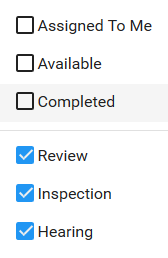
- Assigned To Me: This shows all tasks that are assigned to the user who is logged in.
- Available: This shows all tasks that have not been completed.
- Completed: This shows all tasks that have been completed and the completion date.
- Review: This shows all review task types.
- Inspection: This shows all inspection task types.
- Hearing: This shows all hearing task types.