Assets Panel Fields
The Assets panel shows information concerning the attached asset(s). The number of total entities is listed in the panel.
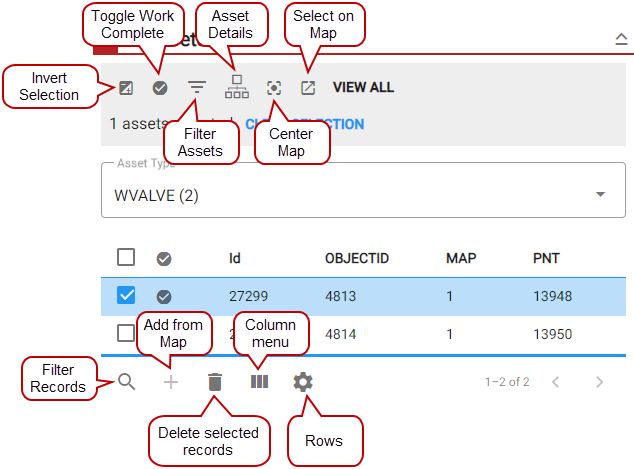
- Invert Selection: Tap to switch between selected assets.
- Toggle Work Complete: This allows you to mark work as complete for all assets in the panel or for each individual asset.
 NOTE: This field only appears when you are viewing a work order.
- Filter Assets: Tap to filter assets by work complete or work incomplete.
- Asset Details: Tap to open the Asset Details page. See Asset Details for more information.
- Center Map: Tap to center the map on all the assets in the list or if an asset is selected, center the map on the selected asset.
- Select on Map: Tap to highlight selected assets on the map. If no assets are selected in the Assets panel, then all the assets in the list will be selected.
- Filter Records: Tap to search for an asset, such as by ID number.
- Add from Map: Tap to add assets selected on the map.
- Delete selected records: Tap to remove assets from the Assets panel.
- Column menu: Tap to modify the columns shown in the panel.
- Rows: Tap to change the number of rows viewed at a time.