Work Order Drop-down List Fields
The following fields are found in the Work Order drop-down list.
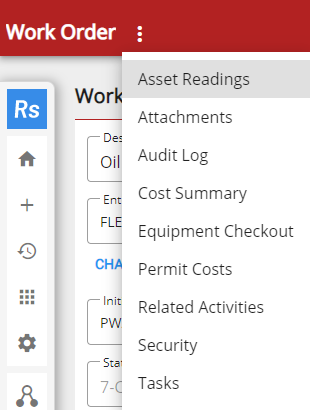
- Work Order: Tap the drop-down list to access more functionality within the work order.
-
Asset Readings: Tap to manually update the asset reading on the work order. Assets must be configured for readings in Designer. See Asset Readings for more information.
- Attachments: Tap to attach images, documents, or files related to the work order. See Use Attachments for more information.
- Audit Log: Tap to view an audit log, which tracks all edits made to the work order. See View the Audit Log for more information.
- Cost Summary: Tap to view the work order cost summary. See Cost Summary for more information.
- ELM: Tap to quickly add labor, material, or equipment to the work order. ELM is for users who use crews. See ELM for more information.
- Equipment Checkout: Tap to create reservations and check out or check in equipment. See Equipment Check Out for more information.
- Permit
Costs: Tap to view and edit simple permits and their costs. See Permit Costs for more information.
- Related Activities: Tap to view any activities related or associated to the work order. See Related Work Activities for more information on opening related activities, adding new activities, linking to existing activities, and removing activities.
- Security: Tap to view and edit the work order security. This is only available to domain administrators. See Security for more information.
- Tasks: Tap to view, edit, or add tasks. See Tasks for more information.