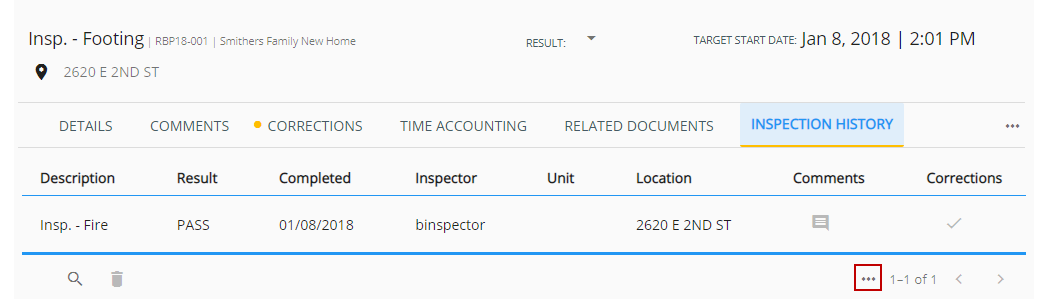
Change Column Display
You can change how columns are displayed for the inspection history and related activities panels.
- Open Task Manager and perform a search. See Search for Tasks for more information on performing a search.
-
 NOTE: Depending on the browser size of the window housing Task Manager, options may appear along the bottom of each task, or appear in a list when you
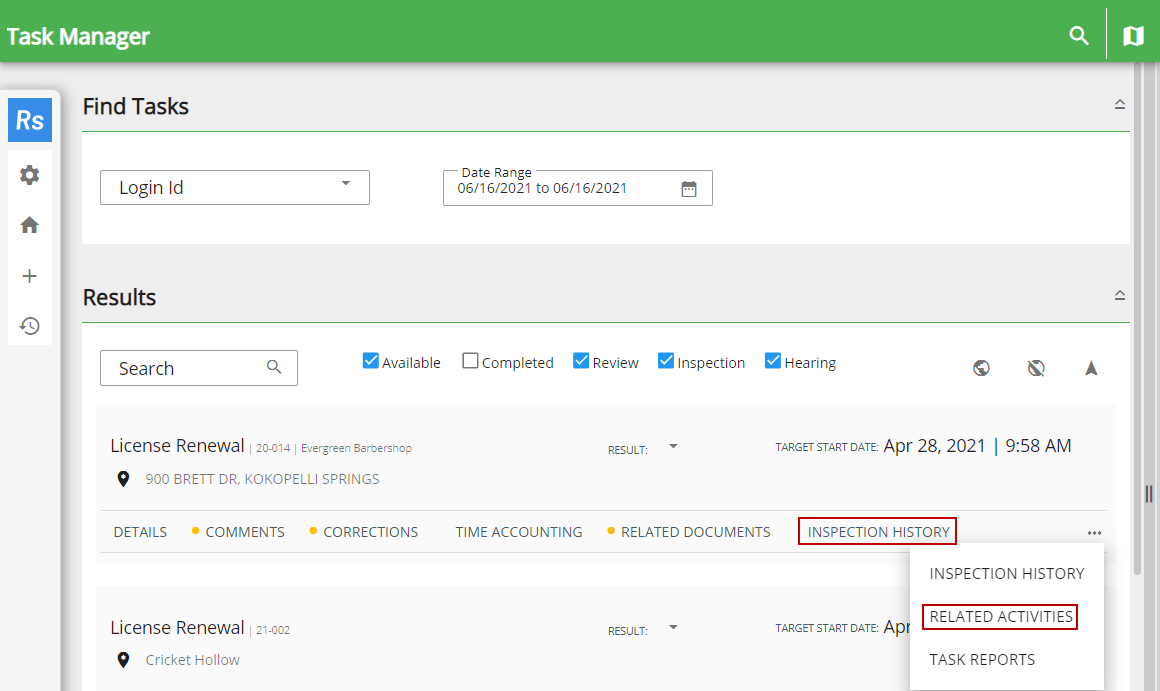
All related inspections and other activities appear.