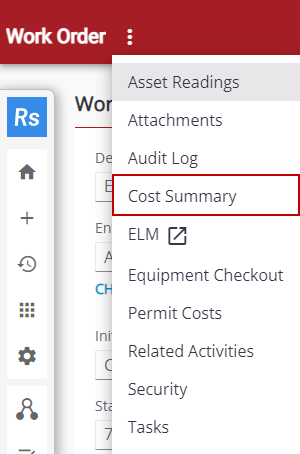
View Cost Summary

The cost summary shows all costs related to the work order and can only be viewed by users who have the View Cost permission.

  1. Open the work order.
  2. Tap Cost Summary from the Work Order drop-down list.

The work order costs are broken down into estimated and actual for labor, equipment, and material. The Overall panel shows the total costs and any that exceed the estimate are shown in red.
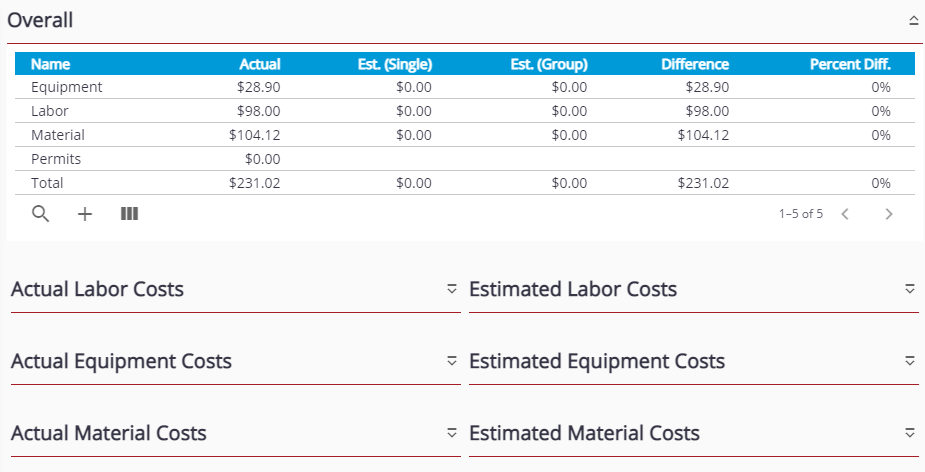

  1. Tap Column Menu to modify the columns visible in the panel by clearing the check box for the column name. In the panel, tap and drag a column to the right or left of another column to change the order the columns are viewed. The app remembers the order of the columns when you log in.

  2. Tap Work Order in the upper-left corner of the page at any time to return to the main work order page.