Address Panel Fields
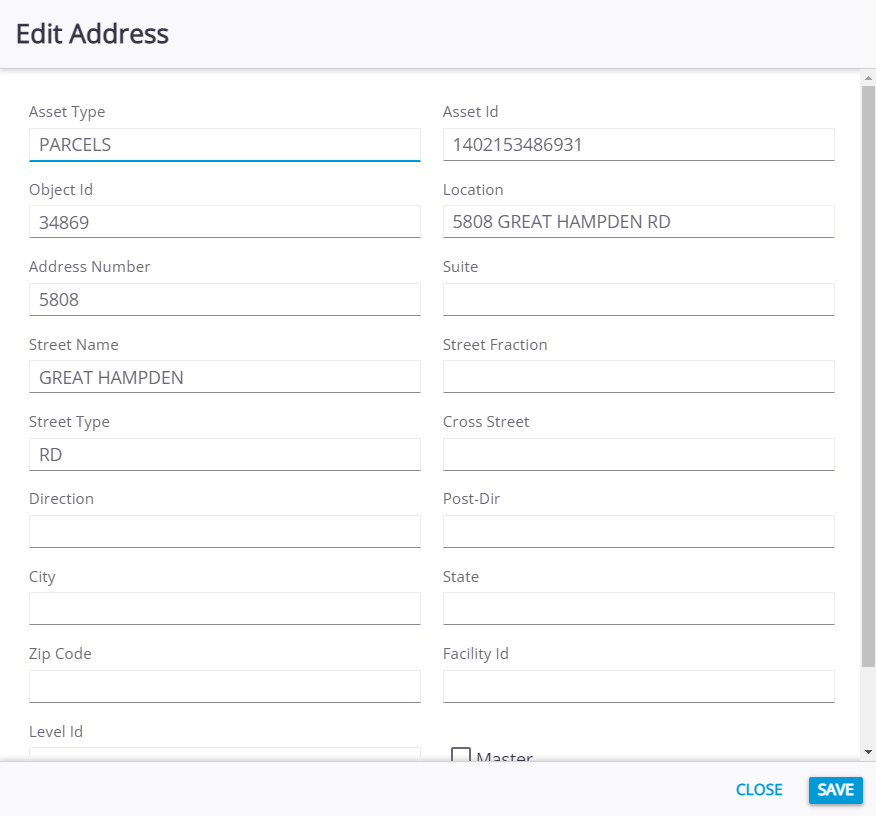
- Asset Type: The category of the permit or application, such as land, structure, and so on.
- Asset Id: This is a numeric identifier assigned to this specific asset.
- Object ID (Parcel): The numeric identifier assigned to a piece of land in the geodatabase. See
- Location: This is the location data for the asset.
- Address Number: The number of the building, lot, residence, etc.
- Suite: The number of the unit (such as an office or apartment) within a larger building or complex.
- Street Name: This is the name of the street.
- Street Fraction: The numerical identifier of a street or alley, which is not separately addressed.
- Street Type: This is the type of street, such as a road, circle, avenue, boulevard, and so on.
- Cross Street: The name of the nearest intersecting street.
- Direction: The directional prefix of the street (for example, N, NW, W, etc.).
- Post-Dir: The directional suffix of the street (for example, S, SE, E, etc.).
- City: The city where the address is located.
- State: The state where the address is located.
- Zip
- Facility Id: This is the Facility Id for the building where the asset is located. This field automatically populates if an asset is attached to the work activity. If multiple assets are added to the work activity, the first asset with a Facility Id defined is used. This corresponds with the facility and level IDs set up for assets in the geodatabase. See
- Level Id: This is the Level Id for the floor where the asset is located. This field automatically populates if an asset is attached to the work activity. If multiple assets are added to the work activity, the first asset with a Level Id defined is used. This corresponds with the facility and level IDs set up for assets in the geodatabase. See
 NOTE: Use Style to make the Facility ID and Level ID fields visible on the Edit Address panel. See Make a Control or Panel Visible in the Cityworks Style 1.5 Guide for more information.
- Master: Select this check box to designate this address as the primary address for the site.
- Expired: This check box designates the address as expired.
Address Fields
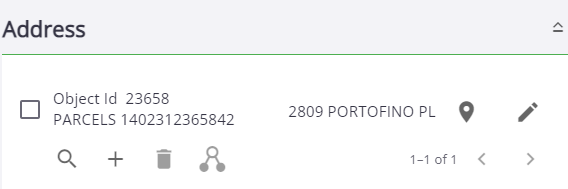
- Filter records:
- Add record:
- Delete selected records: Select one or more records and
- Asset details icon: Select a record and