Edit Asset Details

The attributes of an asset can be edited from the Details section.

PREREQUISITES:

  • The user must have Attributes or Geometry edit rights to edit attributes. See Groups in the Admin 3.0 Guide for more information.
  • To view or edit asset details, verify that you have the correct Esri user type. See the User Types page on Esri's website. To do more advanced GIS operations, the Creator, Professional, or Professional Plus user type may be needed.
  • The first time you install Respond, you need to add any apps or pages you need or want to access. For example, use the Route menu option to add a menu item that navigates to the Asset Details, License Management tool, and other pages. See Add Menu Items and Edit Item Fields for more information.

  1. Open the Asset Details page.

TIP: You can filter the list of records displayed. See Filter Records for more information.

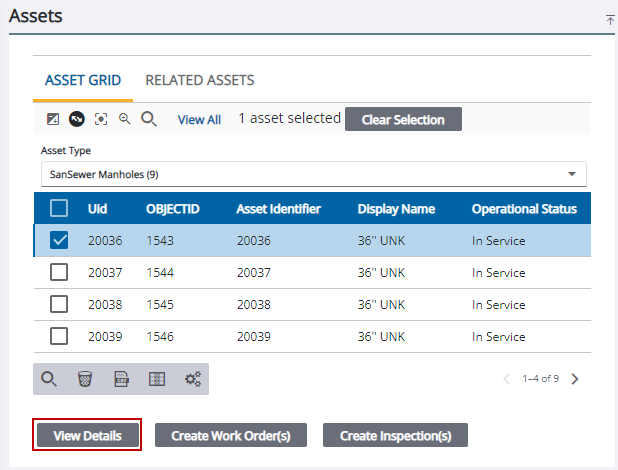
  1. Select an asset from the Assets panel. If needed, see Add Assets or for more information.
  2. Tap View Details.

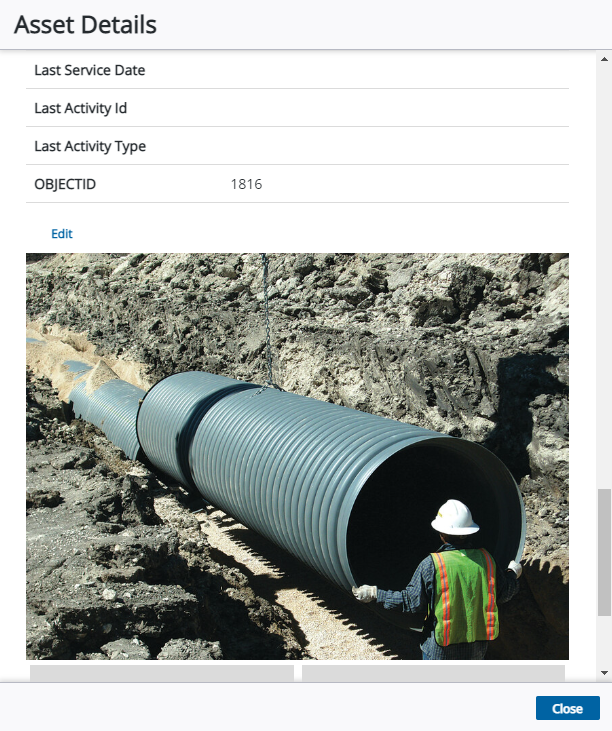
  1. Tap Edit in the Attributes tab.

  1. Enter or change information for the desired fields.
  2. Tap Save.