Add a Violation
Code violations are used to identify conditions that do not meet a set of rules or code requirements. The Violations panel allows you to add code violations to a case. Depending on how the administrator has configured the template, certain violations might already be on the case. They are listed in the panel. You can also add violations if needed.
- To add a violation to the case,
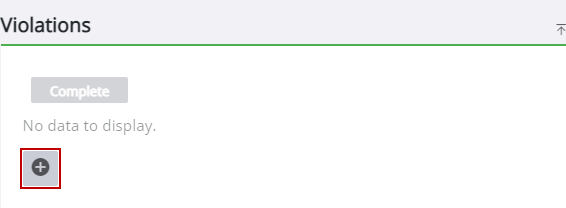
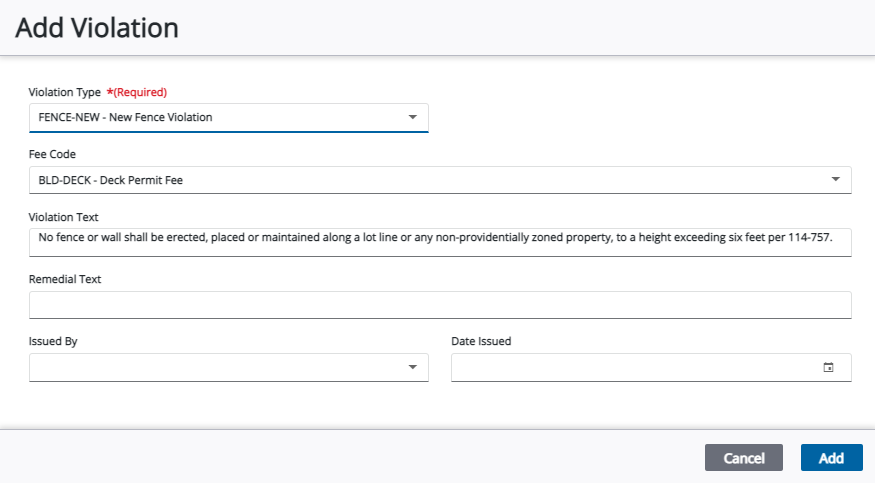
The Add Violation panel opens.
- Select a Violation Type.
The Violation Text field automatically populates when the Violation Type is selected if it has been configured by the administrator. See
- Select a fee to associate with the selected violation from the Fee Code field.
- Enter Remedial Text explaining what needs to be done to remedy the violation.
- Select an employee for the Issued By field.
- Use the calendar icon to enter the Date Issued.
From here you can remove, view, search, and complete violations. See Violations in the Case Summary page for more information. See Violations Panel Fields for an explanation of the Violation panel fields.
 NOTE: Custom forms can be configured by the administrator and applied to specific areas in the UI, such as based on a specific template, fees, comments, and more. See

