Add an Asset to a Work Order
Assets can be added to a work order.
- Select assets on the map. See Selection for more information.
-
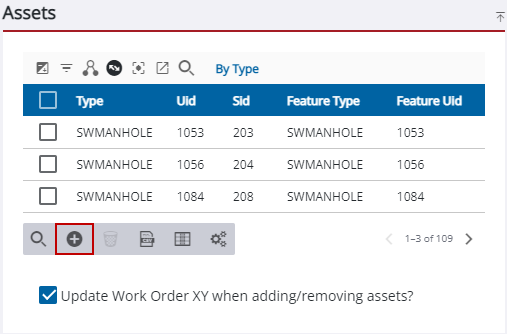
 NOTE: If the assets are different than a previous asset attached to the work order, select the Asset Type drop-down list to switch between the assets or
See Assets Panel Fields for an explanation of the Assets panel fields.

