Create a Cyclical Work Order
Cyclical work orders can be created for work that occurs at regular intervals, such as routine maintenance. Cyclical work orders can be created from individual work orders, or the administrator can define a work cycle on the work order template so that cyclical work orders are automatically created. See
 IMPORTANT: If assets have been attached, make sure to save the work order before setting up cyclical work orders on the Work Cycle panel, otherwise the asset is not passed to the child work order.
- Open a work order.
- Scroll to the Work Cycle panel.
- From the Repeat drop-down list, select how often you want the interval to repeat: Never, Once, or Every.
- In the Interval fields, select how often you want the interval to repeat by entering a number and selecting Days, Weeks, Months, or Years from the drop-down list.
- Select the date you want the cycle to start from: Actual Finish Date, Projected Start Date, or you can select a Date. If you select a Date, select the date using the calendar icon or enter it in the Cycle From Date field.
 NOTE: If Date is selected, a prompt asking you to create the next work activity in the cycle does not appear. Instead, it creates the next one in the cycle immediately.
- Only select Cycle From Date if Date was selected in the From drop-down list.
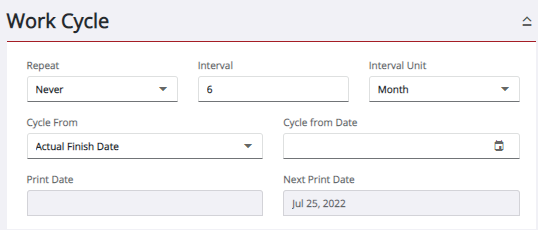

See Work Cycle Panel Fields for an explanation of the fields on this panel.

