View an Attachment
Attachments can be viewed from the Attachments panel.
 NOTE: For PLL cases, the Attachments panel looks a bit different than the following images, but the functionality is the same.
- Open the work activity.
- Navigate to the Attachments panel.
-
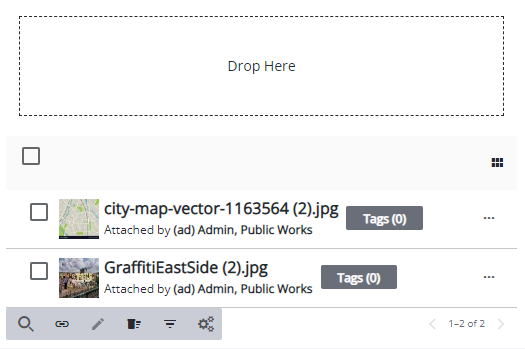
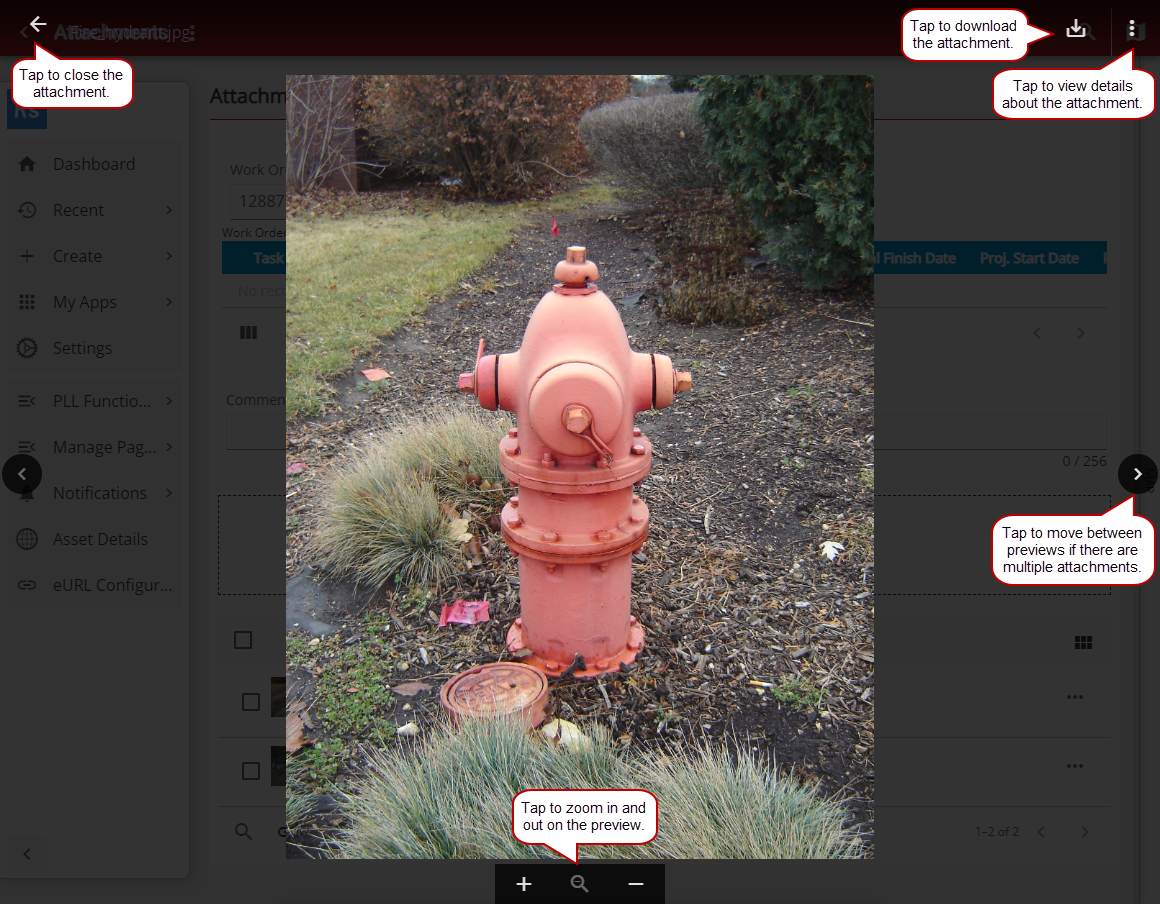
A preview window opens.
-
- If there are multiple attachments,
-
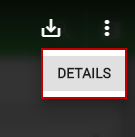
A panel opens and allows you to view details about the attachment, such as its size, name, who it was attached by, or the date it was attached.

