Map
The map contains a visual representation of an area. Use Show Map to view the map or split the screen between the work management window and the map by resizing the map. When you resize the map, the map opens the same distance the next time you
 NOTE: If the map is open and you navigate to Dashboard or Query Editor from any other page, the map automatically closes.
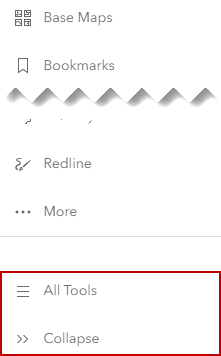
The Selection and Navigation tools are docked on the map. See Navigation or Selection for information on these tools. Additional map tools can be viewed from the map toolbar.
NOTE: Map tools can be customized depending on the profile the user is viewing in