Modify Routes
Once a route is created, you can reorder the stops or remove them from the route.
-
- Create a route by adding work activities, selecting points on the map, or searching for addresses.
- To reorder the route,
-
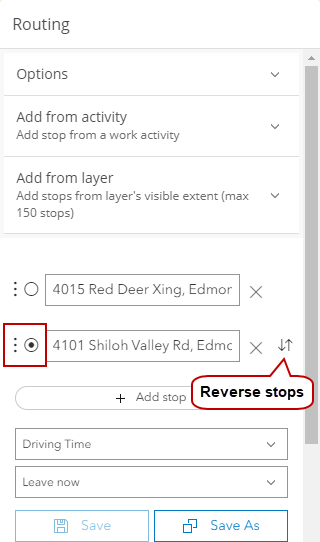
- To remove a point from your route,
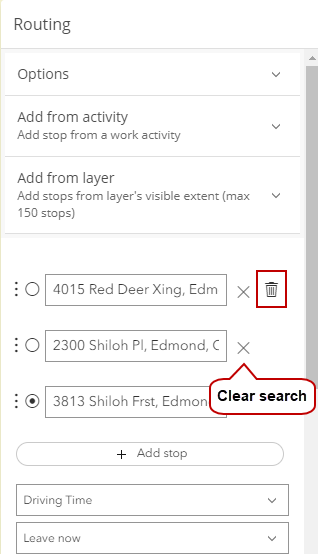
 NOTE: If there are only two points, remove an address by deleting it from the field or
- Select the driving time or distance and when you plan to leave from the drop-down lists.

See Routing Fields for an explanation of the fields.

