Create a Banded List
A banded list is a tool for organizing and presenting your report data through a collection of bands. By default, a banded list consists of a header, a footer, and a details band. When you add a data group, it can also include group header and group footer bands, where report controls repeat for each group on each page of the report.
hen we update or rebind a dataset, ActiveReports rebuilds its internal data bindings. During this process, any unused or default CustomData metadata is automatically removed. This is the default behavior of ActiveReports, as verified in meetings with Mencius Development and Product Team resources. As a result, updating the dataset query text clears or removes the DataSetName from the banded list.
Current Solution:
After updating the dataset, open the Banded List properties and re-select the correct dataset, as shown in the screenshot below (next page).
 WORKAROUND: When a data set is updated or rebound, the data set is cleared from a banded list. After updating a data set, select the banded list in the report to open the Banded List properties. Select the correct Data Set Name from the Data section to re-establish the link.
 BEST PRACTICE: If many results are wanted, a banded list works best to display the results. Banded lists are also what should be used if doing joins.
- Click somewhere in body of your report.
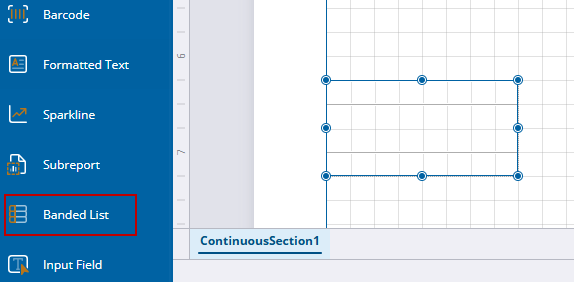
- Select Banded List from the AR Web Designer toolbar to insert it.
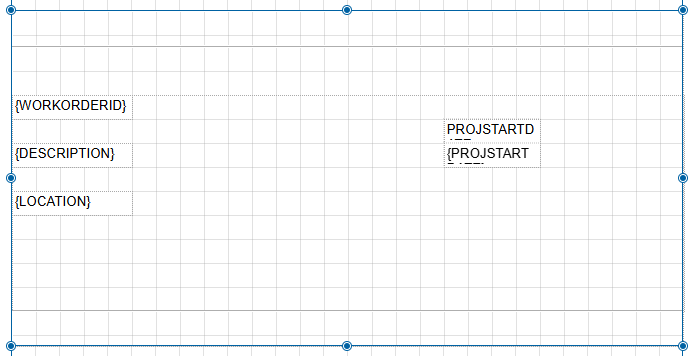
2. Drag containers or other report controls into the Details section, the middle section, of the banded list.
- Group the data within the list to organize the fields. See Group Report Data for more information.
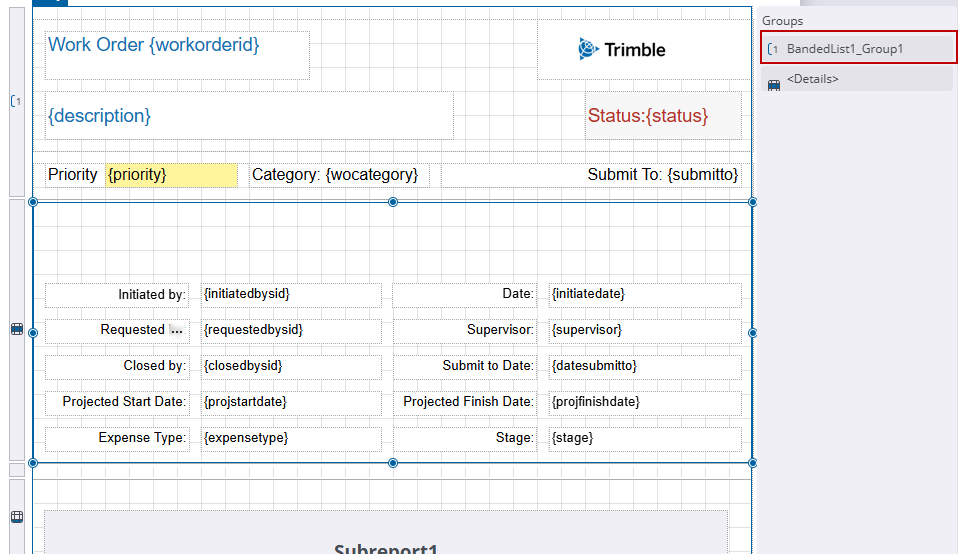
- Fill out the header and footer of the banded list.
- Click Save.
- Click Preview to see if the report looks as expected. See Preview a Report for more information.