Add a Contractor
A contractor is a person or business that provides equipment, materials, or labor on a contract basis. Contractor information has already been configured by the administrator.
If one contractor is performing more than one type of work for the same case, the contractor's information must be added separately for each kind of work (for example, framing, plumbing, electrical, landscaping, and so on).
|
|
 PREREQUISITES:
- To add a contractor to the case,
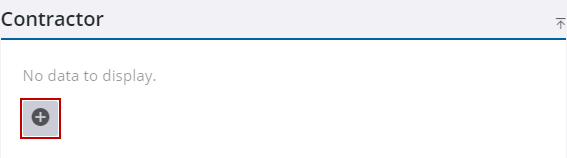
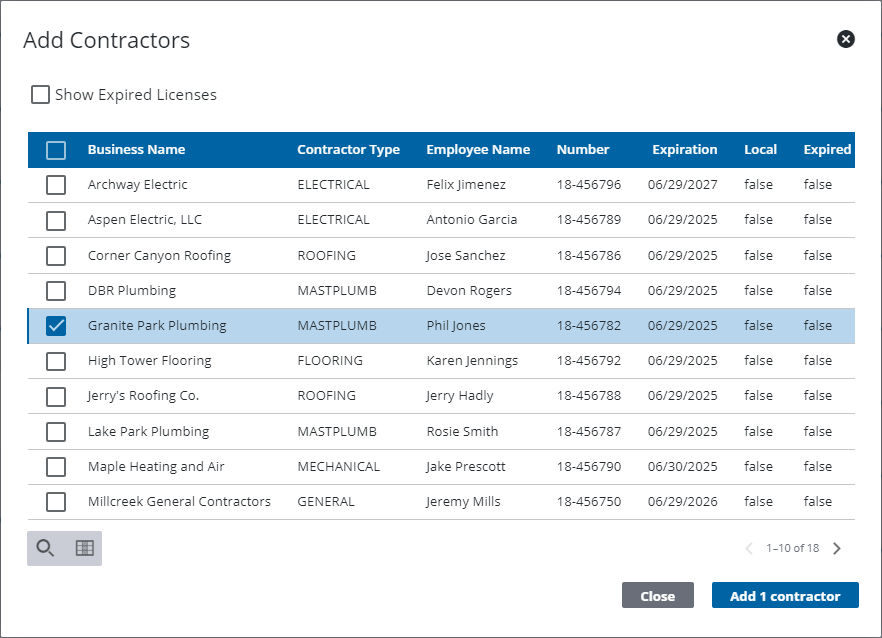
The Add Contractors panel opens.
 TIP: You can filter the list of records displayed. See Filter Records for more information.
- Select the check box by the desired contractor(s).
-
|
|
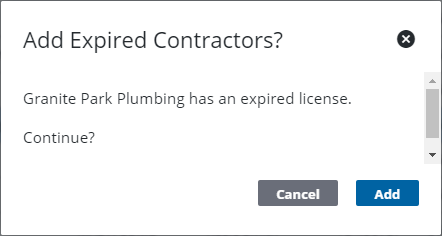
The contractor's information automatically populates in the Contractors panel.
From here you can remove, view, and search contractors. See Contractor in the
 NOTE: Custom forms can be configured by the administrator and applied to specific areas in the UI, such as based on a specific template, fees, comments, and more. See