Filter Report Data
Report data can be filtered by fields that have been added to the report, or fields that aren't added to the report, but exist in the data set. An example of filtering data by fields not on the report might be filtering work orders by a specific supervisor to generate a report for them.
- Open the Report Designer.
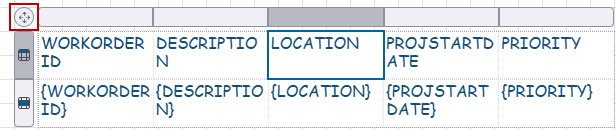
- Click the table and click the icon in the upper-left corner to select the entire table.
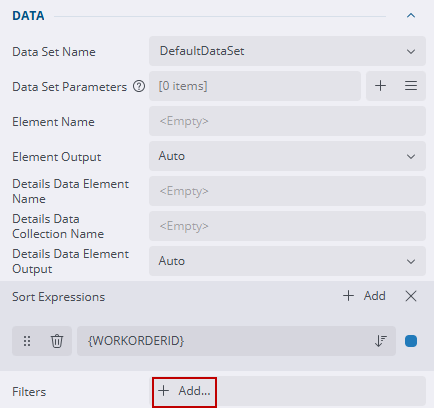
- Click the Properties tab and scroll to the Data section.
- Click Add in the Filters field.
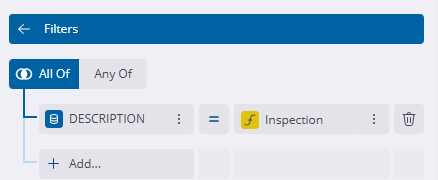
The following example filters the list of work orders shown to only have a Description of Inspection.
- Click All Of.
- Click Add and select Description from the list.
- Select Equal To.
- Click the three dots icon and click Expression.
- Enter the description wanted, in this case, Inspection.
Expressions are case and space sensitive.
- More filters can be added, if wanted.
- Click Save.
- Save the report.
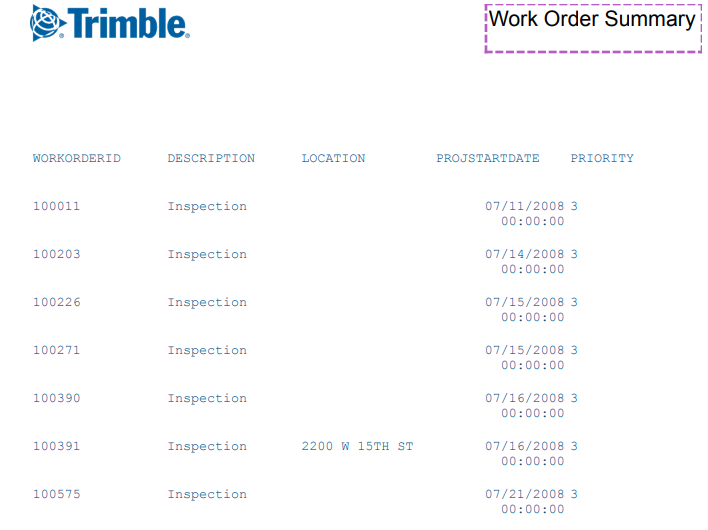
- Click Preview. See Preview a Report for more information.
The report shows only work orders that have a description of Inspection.
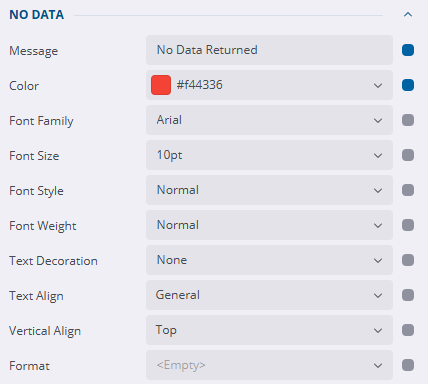
- Set up the No Data section on the Properties tab in the event that no data is returned on the report.
For more information on expressions and operators used to filter data, see Expressions and Operators in the Mescius online help.