Create the Application in ArcGIS Online or Portal for ArcGIS
You will need to create an application in your ArcGIS Online or Portal for ArcGIS account in order to complete the configuration of Single Sign-on.
For more information on creating an application in ArcGIS Online or Portal for ArcGIS, see Esri's documentation: ArcGIS Online Help or Portal for ArcGIS Help.
|
|
 PREREQUISITES:
- Log in to your ArcGIS Online or Portal for ArcGIS account.
- Under My content, click Add Item and select An Application.
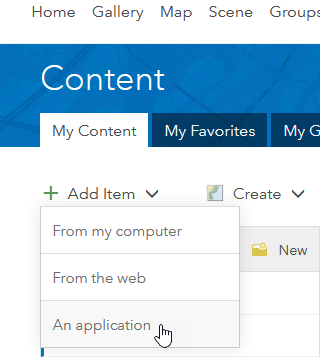
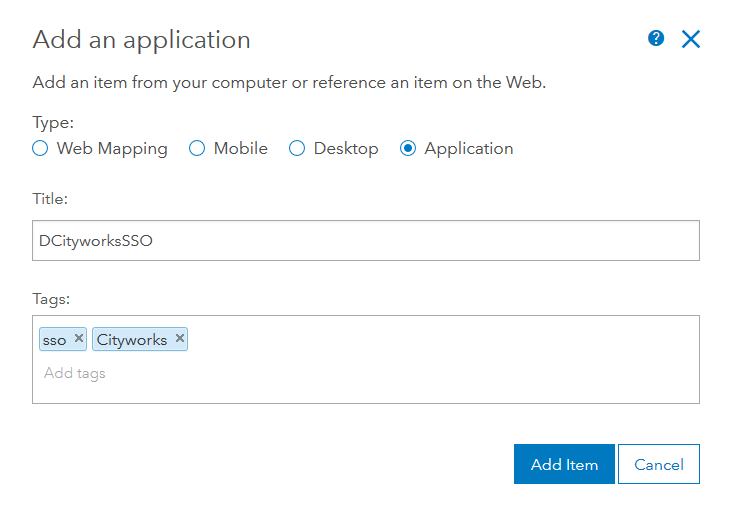
- Select Application for the Type, and enter a Title for the application. Enter Tags to make it easier to search for this application.
- Click Add Item.
- Share this application with your entire organization, or the groups in ArcGIS Online or Portal for ArcGIS that contain the users that will need access to Cityworks through Single Sign-on.
- Navigate to the Settings tab for the application.
- In the Application Settings section, click Registered Info.
- The App ID is shown, and you can click Show Secret to view the App Secret. You will need these values for the OAuth 2 Clients page in Designer, so leave this window open.
- Return to your ArcGIS Online or Portal for ArcGIS account and click Update next to the application.
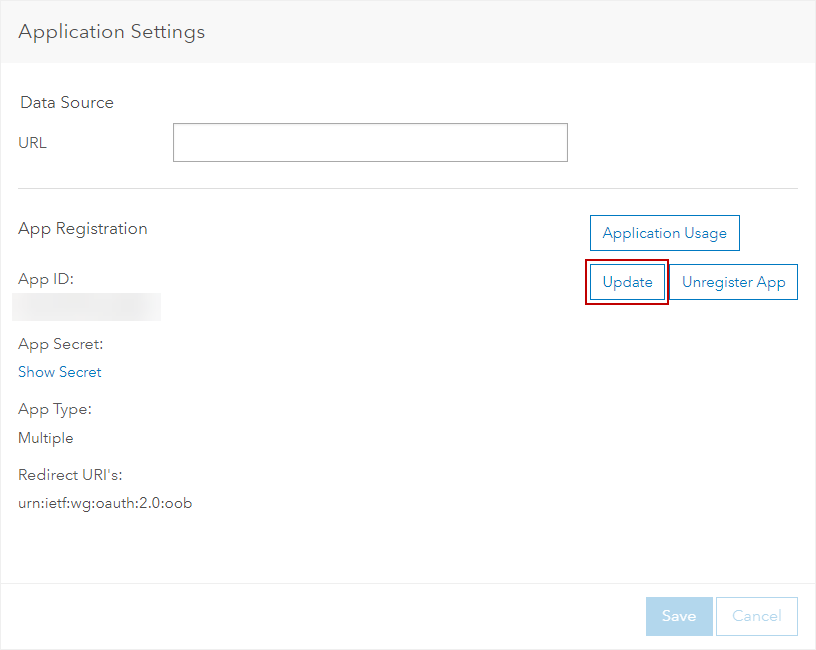
- Click Update to add a new Redirect URI.
Note that there is already a Redirect URI value for urn:ietf:wg:oauth:2.0:oob. Leave this value.
- In the Redirect URI field, enter the URL for your main Cityworks site. Click Add.
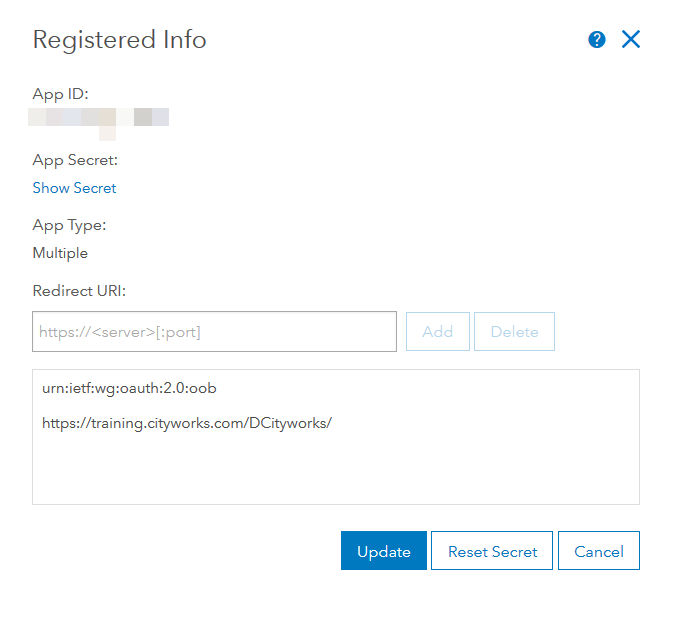
- Click Update to save the configuration.
The next step is to configure the OAuth 2 Clients in Designer.