Add or Edit a Group
Groups is used to add or update groups.
|
|
 PREREQUISITES:
- Click Config on the Storeroom toolbar and click Groups.
The Groups panel lists all of the existing groups. You can filter this list by typing the first few letters of the groups in the search box in the top-right corner of the panel.
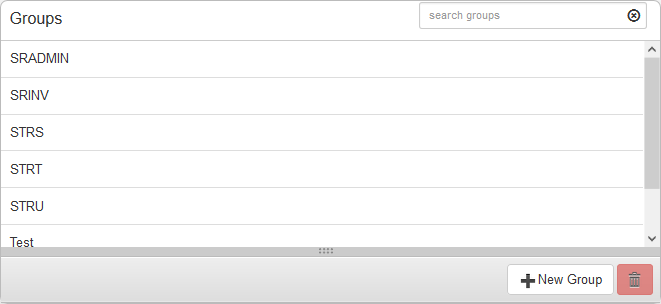
- Click New Group to add a new group.
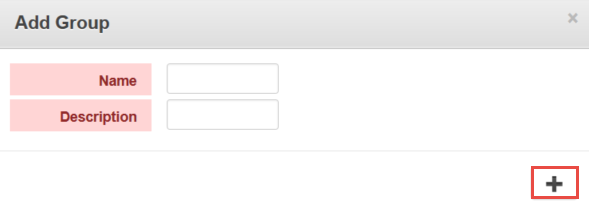
- Enter the Name and Description, and click the plus icon.
- Select the new group and finish entering the details in the Group Details panel that appears below the Groups panel.
The Group Details panel displays the Name and Description of the group, and the Group Members and Group Rights.
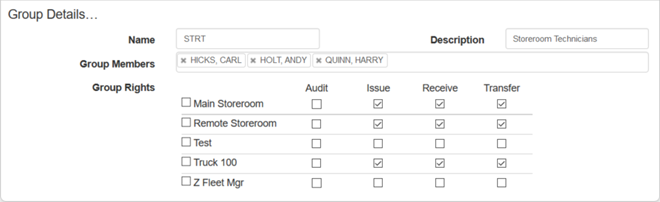
- Add employees to the group by clicking in the Group Members field and typing the name of the users. Select the desired user to add them.
 NOTE: If you have a user who needs to issue material from a work order, but isn't licensed for Storeroom, add them to a group and give the group Issue rights to all storerooms they work in. This allows the user to select a storeroom while issuing material from a work order outside of Storeroom.
 TIP: Click the X next to a group member to remove it from Group Members, or press Delete on your keyboard.
The Group Rights section displays the group's permissions in the listed storeroom(s).
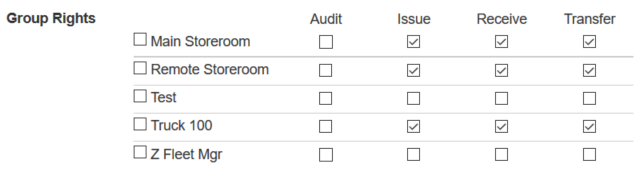
- Select the appropriate permissions for each group for Audit, Issue, Receive, and Transfer. You can also select the check box next to the desired storeroom to assign all the permissions to that group.
NOTE: If a user has Issue rights, Receive rights should also be given so that unused material can be received back into the storeroom. Any user has the rights to perform a requisition as it is merely a request for material and doesn't affect the inventory.
For an explanation of the Group Rights found on this page, see Group Rights Fields.
- To edit a group, select it from the Groups panel and make the desired changes in the Group Details panel.
NOTE: Storeroom automatically saves the changes you make. A notification will appear in the top of the window that says Data Saved when you make changes to the page.

Documentation Feedback Form
Please give us feedback about this Cityworks guide.
If you have a feature enhancement request, please see the Ideas page on MyCityworks.
Last updated 1/3/2020.
Copyright© 2014–2019 by Azteca Systems, LLC. All rights reserved.