Material Panel
The Issue, Receive, Transfer, Audit, Requisition, Build Assemblies, Requisition Search, and Transaction Search pages are split into two panels, the Material panel and the bottom panel that changes depending on the transaction being performed. The Material panel includes materials from the storeroom selected and can be used to select material in a variety of ways on all of these pages.
In this panel, you can view or search materials using the Storeroom Material, Work Order Material, Supplier, Requisition, Employee, and Material Search tabs. The search tabs will vary based on which transaction window is open. You can filter the material in the list by tapping Filter records and entering the first few letters or numbers of the material name, bin location, or part number.
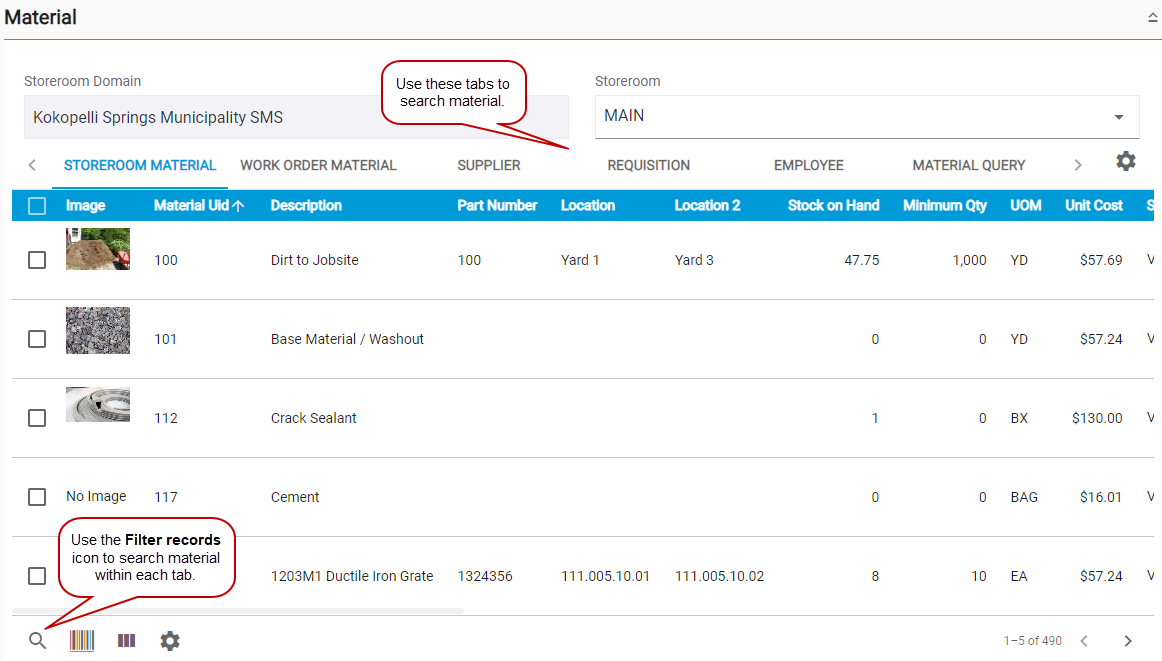
- Use the Storeroom drop-down list to choose which storeroom you want to view or work in.
- Select materials by tapping the material, or by selecting the check box next to the material.
- To remove a selected item, tap to clear the check box next to a material, or tap View Selected Material, then tap the X next to a material.
- Tap Rows to adjust the number of rows shown in the panel.
See Search Materials for more information on using the tabs to search materials.
 IMPORTANT: If you aren't seeing all of your material in the material list, tap the gear icon on the Material panel and change the Max Results field to a value larger than the amount of materials you have defined.