Perform an Audit of Serialized Material
User can audit quantity of serial numbered materials that were lost or damaged.
|
|
 PREREQUISITES:
- Tap Audit from the menu.
- On the Material panel, select a Storeroom from the drop-down list. This changes the list of materials. Materials can only be selected from one storeroom at a time.
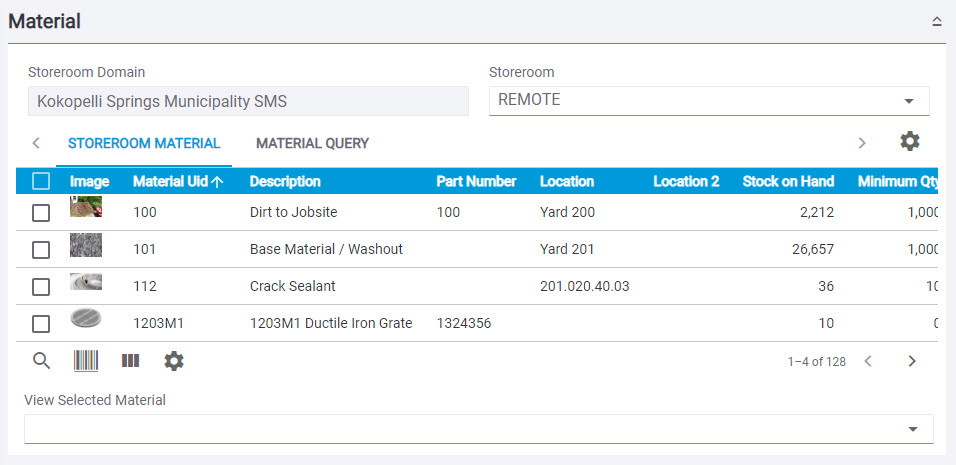
- Select one material from the list. See Search Materials for more information on using the search tabs to find materials.
- Enter the information in the Audit panel to audit the material, including the New Quantity and/or New Unit Cost if the value has changed.
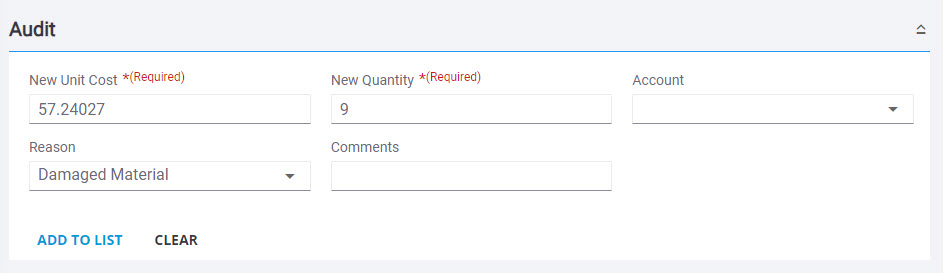
 NOTE: The Quantity can not be increased. Serialized material must be received and the serial number added to the material before an audit can be performed.
- Tap Add to List.

For an explanation of the fields found on the Audit panel, see Audit Transaction Fields.
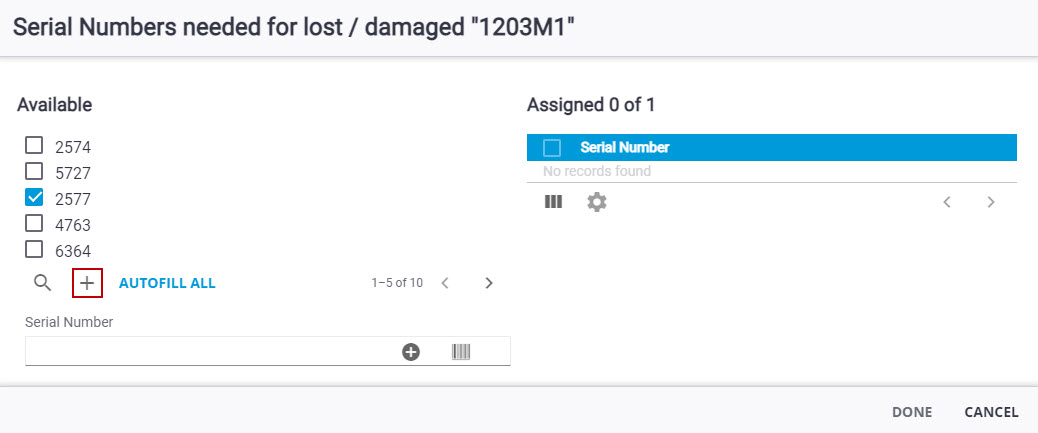
- Choose from the following ways to add the serial number.
- Select the serial number from the Available list and tap Add record.
- Enter the number in the Serial Number field and tap the add icon.
- Enter the number in the Serial Number field and the drop-down list filters through matching available numbers. Tap on the number to add it the Assigned section.
- Tap Autofill All to randomly assign the needed serial numbers from the Available list.
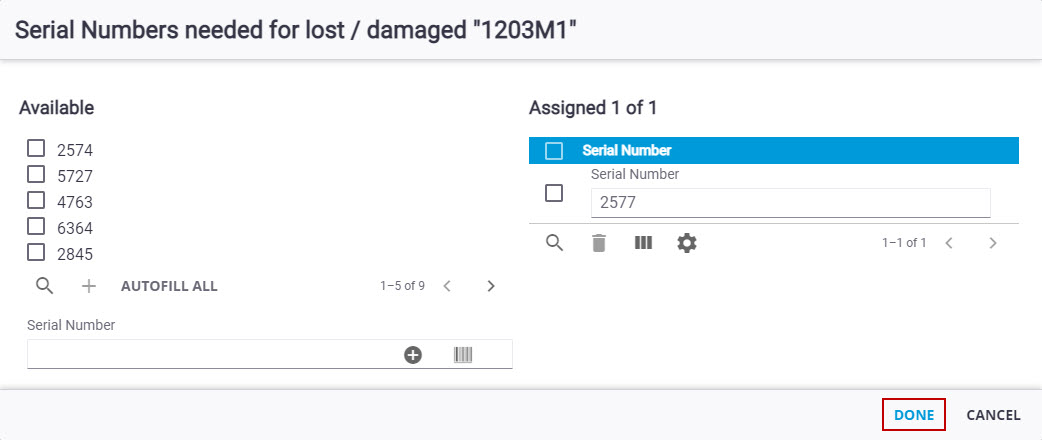
- Tap Done.
For an explanation of the fields found on the Audit panel, see Audit Transaction Fields.