Move a Widget
You can move a widget from one position to another position on a dashboard.
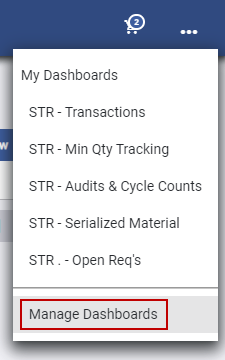
 NOTE: The most-recently-viewed dashboards display. To quickly switch between recently-viewed dashboards, see Switch Between Dashboards for more information.
The Dashboard Management page opens.
-
- On the Dashboard - Edit page,
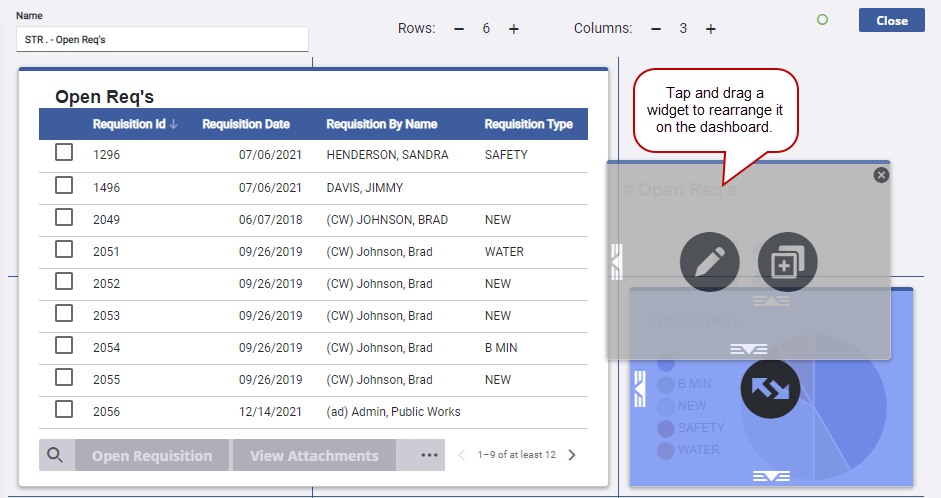
NOTE: Changes made to the dashboard save automatically.
To edit the dashboard, see Edit a Dashboard for more information.