Remove a Storeroom
A storeroom can be removed from Storeroom.
 IMPORTANT: Storerooms can be removed. However, Cityworks strongly recommends that you do not remove a storeroom if there are any records associated with it. Instead, make the storeroom inactive to preserve the historical data associated with the storeroom.
|
|
 PREREQUISITES:
- Tap Configure from the menu.
- Tap Material.
- Tap the Storerooms tab.
 TIP: You can filter the list of records displayed. See Filter Records for more information.
- Tap the arrow to the right of the desired storeroom.
- Clear the Is Storeroom Active check box in the Details section to make the storeroom unavailable to users.
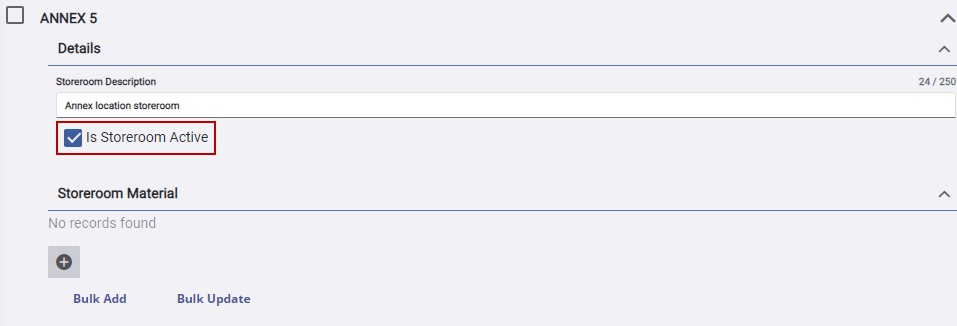
 NOTE: Active storerooms are black and inactive storerooms are grayed out.
If no historical data is associated with the storeroom, remove it from the Storeroom panel.
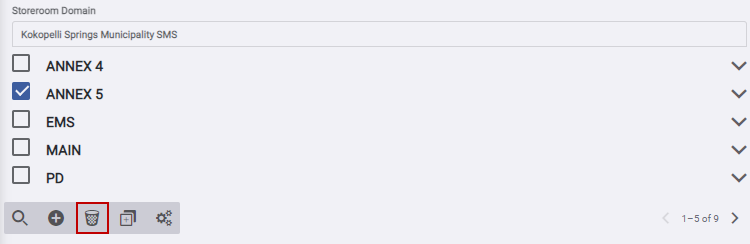
- Select the desired storeroom and tap Delete selected storerooms.
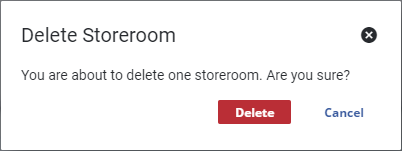
- On the Delete Storeroom panel, tap Delete.
NOTE: Storeroom automatically saves the changes you make. A notification appears at the bottom of the window that says Changes Saved when you make changes to the page.