Add Serialized Material
Add or upload serial numbers for existing material or new material.
|
|
 PREREQUISITES:
- Tap Configure from the menu.
- Tap Material.
 TIP: You can filter the list of records displayed. See Filter Records for more information.
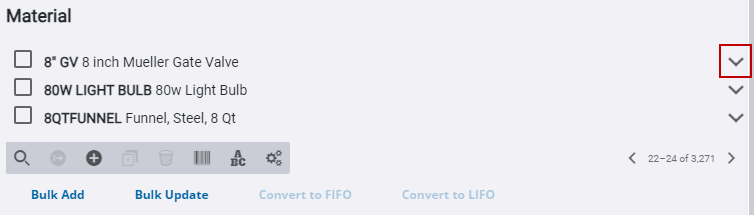
- Tap the arrow to the right of the material.
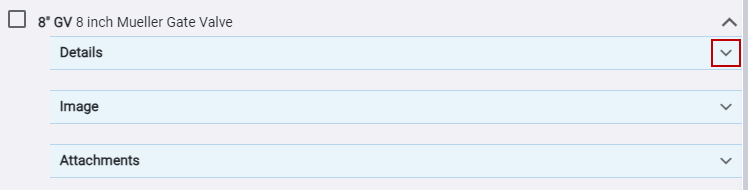
- Tap the arrow to the right of Details.
- Select Is Serialized.
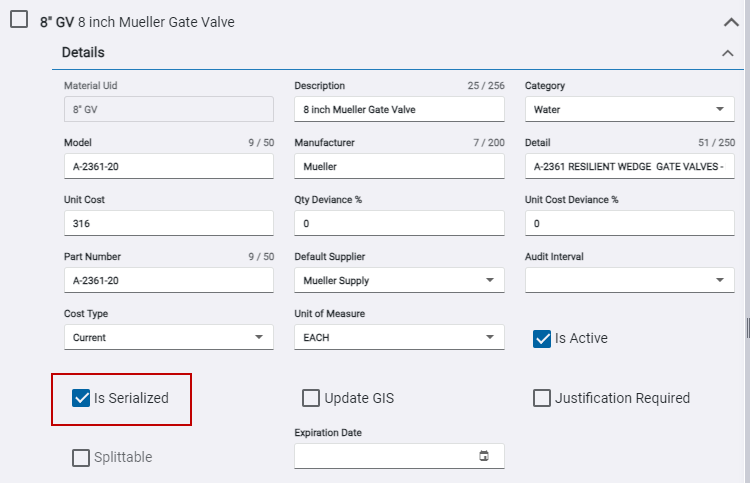
 NOTE: If Splittable is selected or the material has children material, then the Is Serialized check box cannot be selected.
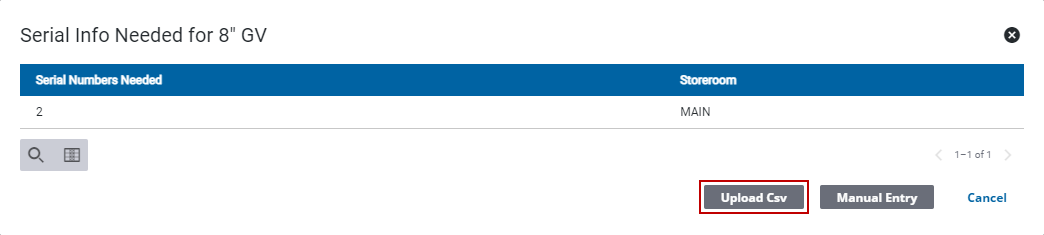
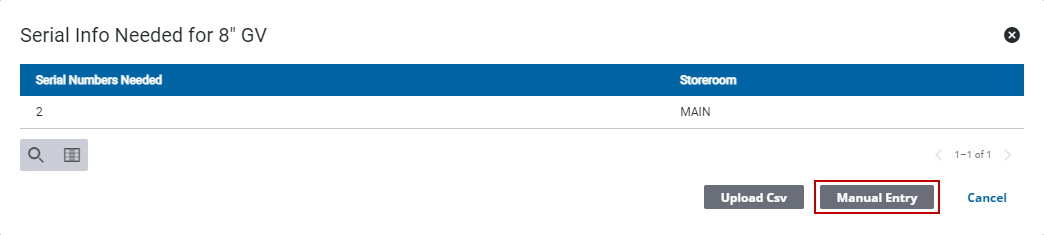
If there is stock on hand, the Serial Number Needed panel opens. You can upload a .csv file or manually add the serial number.
 Upload CSV
- On the Serial Info Needed panel, tap Upload CSV.
TIP: The .csv template file is located in the Upload a CSV file panel. Tap Download Template to download the template. The template file is pre-filled with how many serial numbers are needed.
NOTE: The columns in the template are Serial Number, Warranty Date, and Expiration Date. The Serial Number column is a required column. The Warranty Date and Expiration Date are optional. The first row of the .csv file is ignored by Storeroom, as it is meant to be used for headers.
- Tap Choose File. Browse to the file.

- Tap Done.
Manual Entry
- On the Serial Info Needed panel, tap Manual Entry.
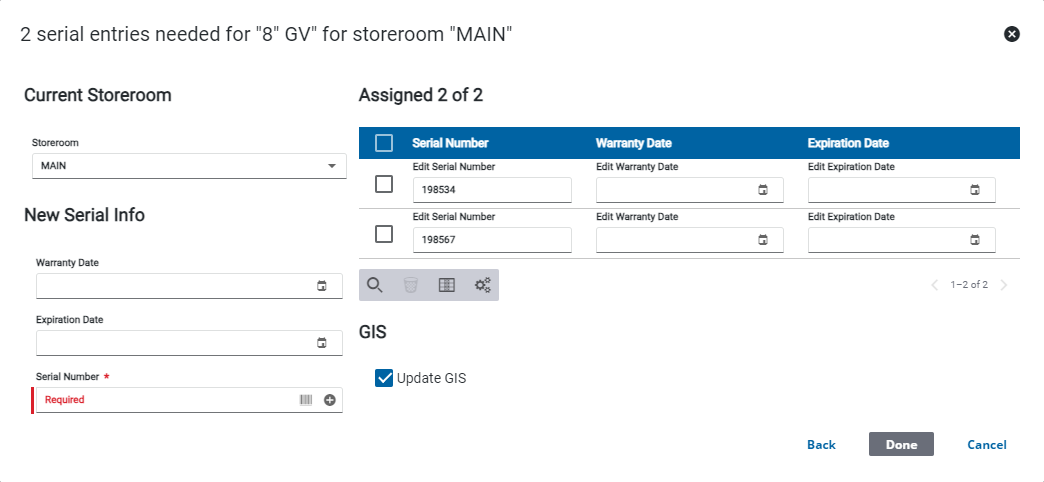
- Select the storeroom from the Storeroom drop-down list. The number of serial numbers needed for the selected storeroom is displayed at the top of the panel.
- Enter the serial number in the Serial Number field or use Scan Barcode to scan the serial number.
- Add the Warranty Date and Expiration Date using the calendar icon and add the unit cost in the Unit Cost field, if desired.
- Tap Add in the Serial Number field to add to the Assigned panel.
- If needed, change the Storeroom to add serial numbers of the same material to a different storeroom. The number of serial numbers needed update at the top of the panel when the storeroom is changed.
- When all the serial numbers are added, tap Done.
NOTE: Done is grayed out until all of the serial numbers have been added.
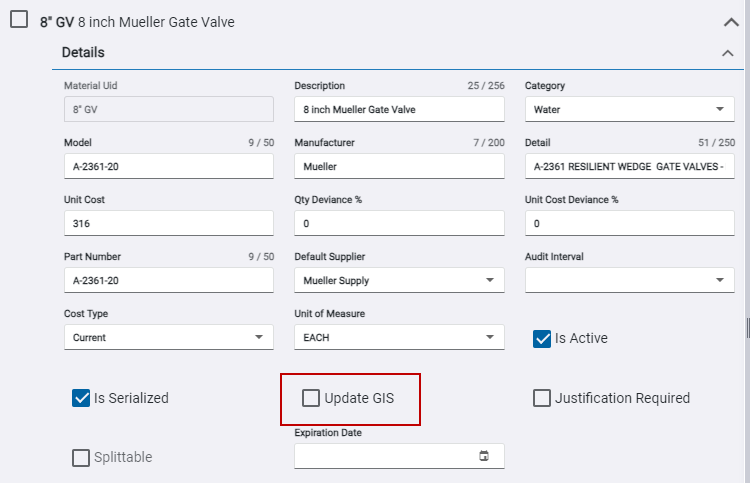
- Select Update GIS to have the material mapped to GIS fields and added as a GIS object to the geodatabase. See