Transfer Material
The Transfer panel is used to move materials from one storeroom to another.
|
|
 PREREQUISITES:
- Tap Transfer from the menu.
- On the Material panel, select a Storeroom from the drop-down list. This changes the list of materials. Materials can only be selected from one storeroom at a time.
 TIP: You can filter the list of records displayed. See Filter Records for more information.
-
Select materials from the list. See Search Materials for more information on using the search tabs to find materials.
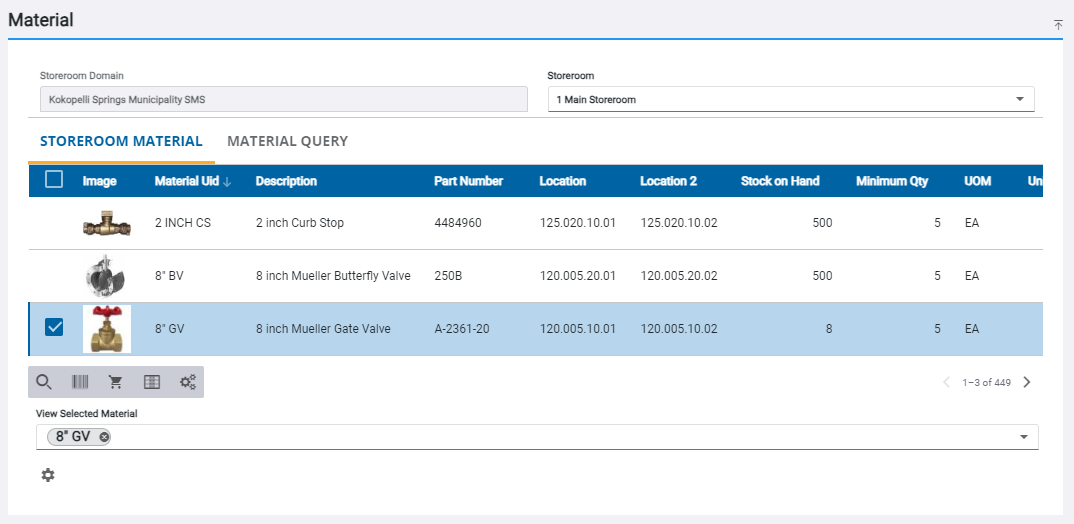
 NOTE: Serialized material can be transferred. See Transfer Serialized Material for more information.
- Enter the information in the Transfer panel to transfer the material.
For an explanation of the fields found on the Transfer panel, see Transfer Transaction Fields.
- Tap Add to List to add the materials to the Pending Transfers panel.
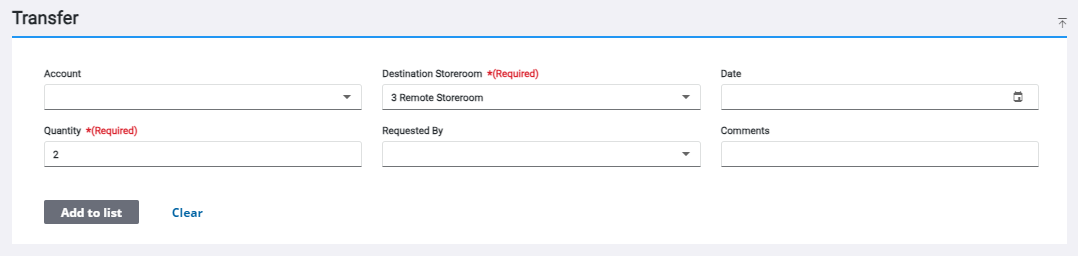
The material is added to the Pending Transfers panel. See Navigate the Pending Transfers Panel for more information.
- Tap Commit on the

- Tap Sign or Close on the Transaction Complete panel.
If you don't wish to sign the transaction now, see Capture a Signature on an Existing Transfer Transaction for more information.