Define a Profile in Designer
You can customize the user interface of apps you are licensed for using Cityworks Style. Profiles are where your customizations for the plugin are stored. By selecting a Profile in the app (i.e., Respond), you can view the customizations (that were made using Style) for a specific group of users who are enabled to use that profile by defining them on the Plugin Profiles page in Designer. For users to view your customizations in apps like Respond, you must define which users will use which profiles.
|
|
 PREREQUISITES:
 TIP: Remember to give employees access to plugins on the Employee Plugins page. See Associate Employees to a Plugin for more information.
- From the General tab
- Click in the Plugins field to select a plugin.
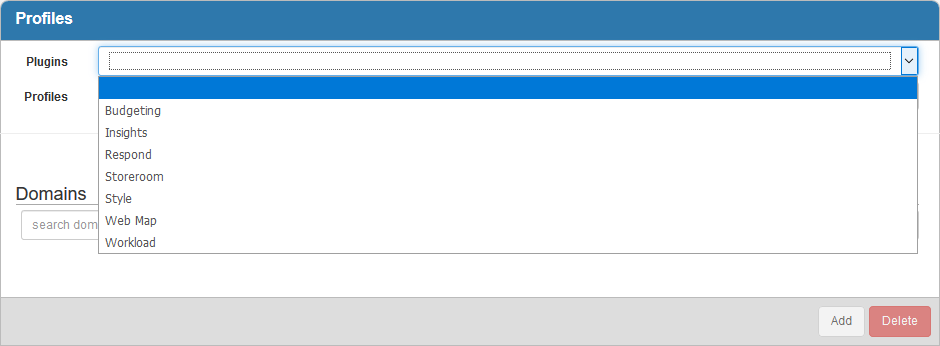
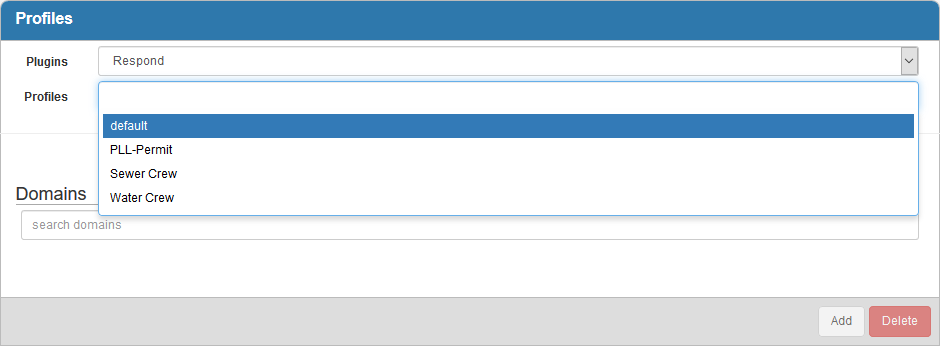
- Click in the Profiles field to select a profile, or filter the list by typing the first few letters of the profile name.
 NOTE: If an employee is assigned to only one profile, the customizations will be applied to that app, but the employee will not see the Profile drop-down list in the user menu.
If more than one profile is selected, the list of associated domains, groups, or employees only contains the domains, groups, or employees that have all the selected profiles.
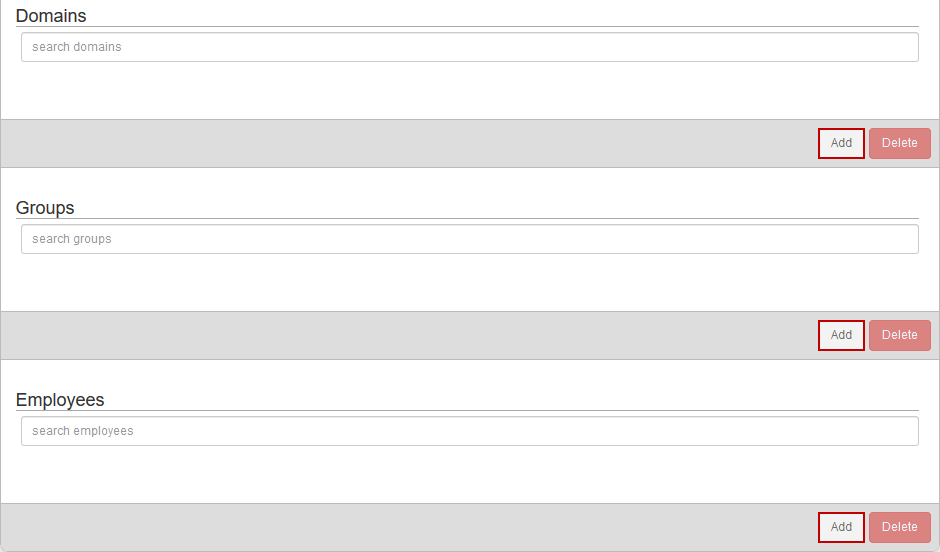
You can define who is able to use the profile by a domain, group, or individual employee.
- In the Domains, Groups, or Employees sections, click Add to associate any domains, groups, or employees to the profile.
- Select the domain(s), group(s), or employee(s) from the list. You can filter the list by typing the first few letters of the domain's, group's, or employee's name in the search box at the top.
TIP: Use <Ctrl + click> or <Shift + click> to select multiple domains, groups, or employees.
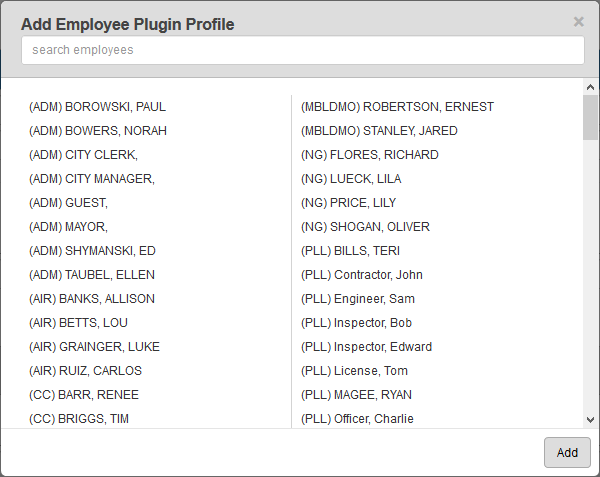
- Click Add.
- To search for domains, groups, or employees associated with the profile, filter the Domains, Groups, or Employees list by typing the first few letters of the domain's, group's, or employee's name in the search box above the list.
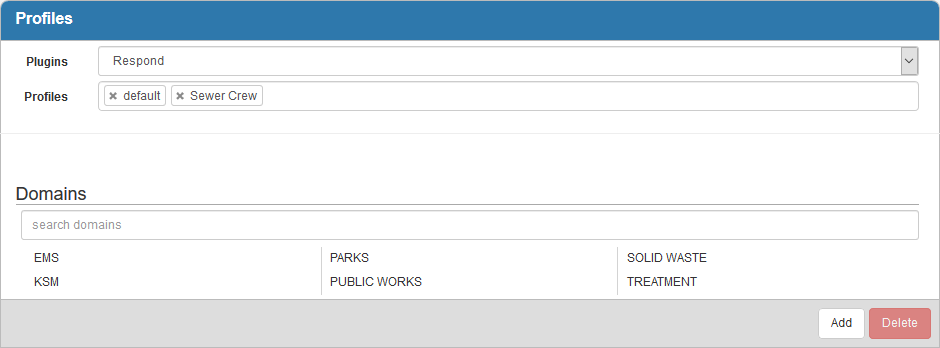
- To remove a domain, group, or employee from the list, select the employee and click Delete.
NOTE: When you log in to the app/plugin that has been customized (i.e., Respond), you will see a Profile drop-down list in the user menu. You can select the desired profile and it will remember your selection for the device that you are using.
