Make a Control or Panel Visible
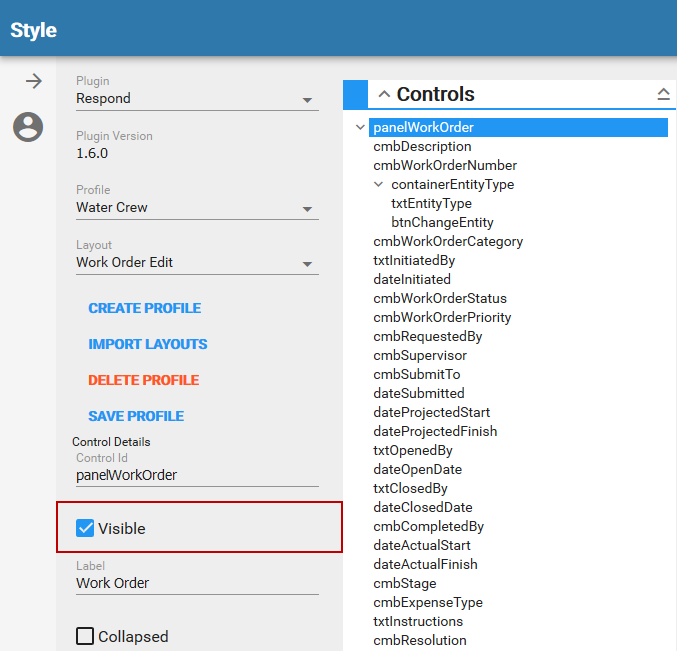
You can choose to have controls or panels Visible when you open the page in the app. If a control or panel is not set as Visible, it is grayed out in the Controls panel.
|
You can choose whether or not to have the Status field visible when the Work Order Edit page in Respond is opened. |
 EXAMPLE
- Select a control or panel from the list.
 TIP: Use <Ctrl + click> to select multiple controls or panels at once. This is helpful if you want to make multiple controls or panels visible or not visible at one time.
- In the Control Details section, select the Visible check box to make the control visible or click to clear the check box to make the control hidden.