Create a Profile
You can create profiles for specific groups or individuals. For example, you can create a profile for the water crew and another profile for water supervisors.
 BEST PRACTICE: It is best to not customize the default profile in case you need to revert to the original plugin layouts when it was first installed.
- Select
-
|
WORKAROUND: New profiles for Respond 2.2 and using Style 1.2 do not save. However, complete the following to allow new Respond profiles to save:
Now custom profiles are saved. |
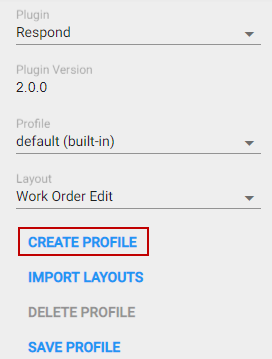
The Create New Profile panel opens.
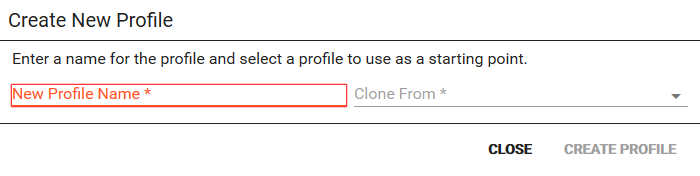
- Enter the New Profile Name.
- Select the profile you want to Clone From to create the new profile.
The new profile is automatically saved and can be defined on the Plugin Profiles page in Designer.