Navigate Style
Style has a user-friendly interface, which is easy to navigate.
 NOTE: The first time you install
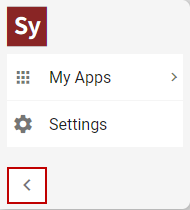
NOTE: When the menu is collapsed, users only see icons. When the menu is expanded, users see the icons along with text.
Style includes Profile, Control Details, Widget Slots, Controls, and Layout Strings panels. See Style Customization for more information.
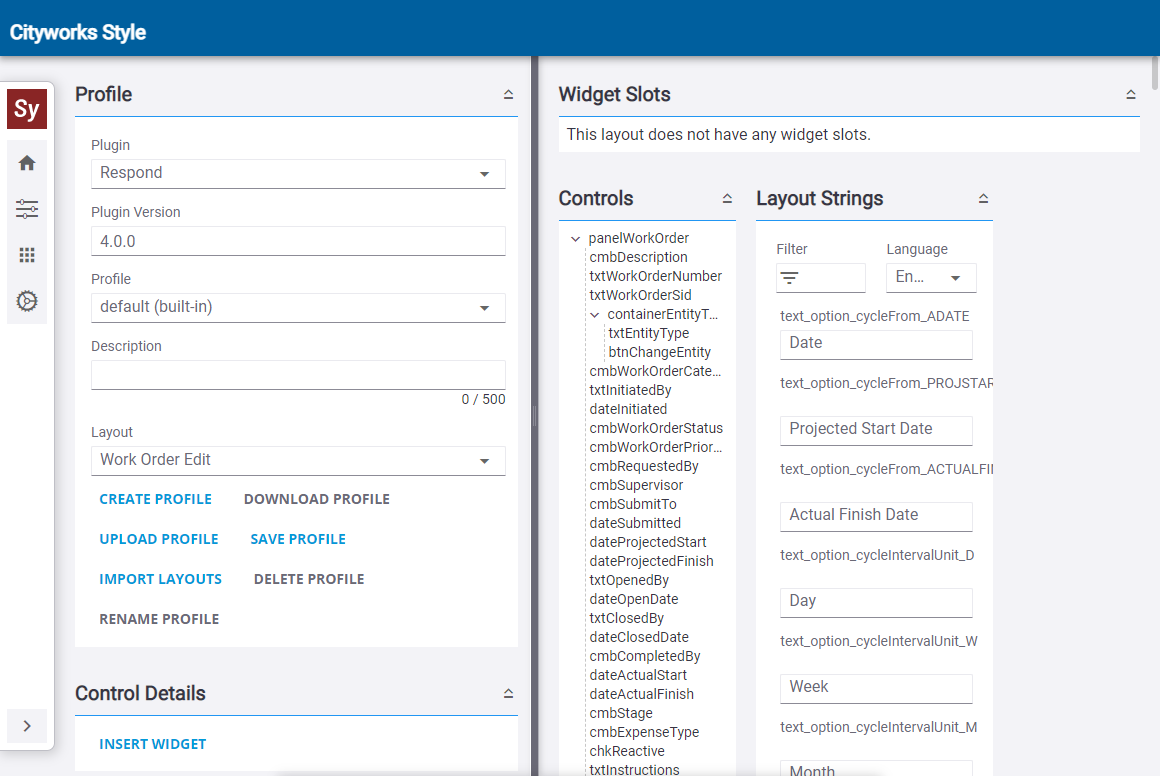
You can resize the width of the column that contains the Profile and Control Details panels.
The Settings menu is where you can switch between profiles, select a Theme, and switch menu styles.