Expose Universal Custom Fields on the Work Order Page
The Universal Custom Fields panel is visible on the Work Order page in Respond by default. However, this is an example of how a Cityworks administrator would modify a custom profile to expose the UCF fields if they were not visible. The following example shows how to do that for the Work Order page.
|
|
 PREREQUISITES:
- Open Style.
- Choose Respond from the Plugin drop-down list.
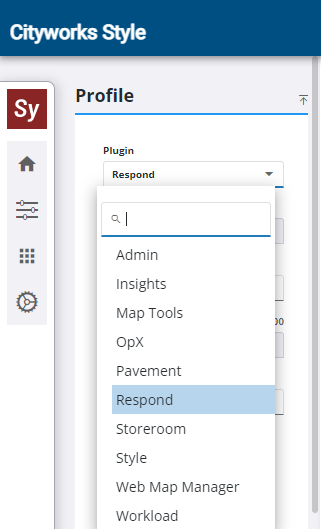
- Select the Profile you want to reveal the universal custom fields for.
 BEST PRACTICE: It is best to not customize the default profile in case you need to revert back to the original plugin layouts when it was first installed.
- Select Work Order from the Layout drop-down list.
 TIP: The list will filter as you start typing.
- Scroll to the bottom of the Controls panel or collapse all the panel controls until you reach the panelUniversalCustomFields control.
Since the control is grayed out, it means the Universal Custom Fields panel is not visible on the page.
- Select the control in the Controls panel.
- In the Control Details section, select the Visible check box.
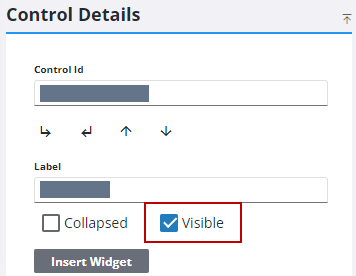
- Select any of the controls nested under the panelUniversalCustomFields and select or clear the Visible check box depending on your need.
-
Now the panel is visible on the Work Order page when viewing the profile you made the universal custom field panel and fields visible on. If you want to change the name or label of any of the fields within the Universal Custom Fields panel, see Modify a Control and for more information.
 NOTE: Use the same steps to expose the UCFs for the inspection or service request edit pages.