Configure Users and Permissions
Users need the right permissions, licensing, and template permissions in order to use the Trimble Unity mobile app.
 Permissions
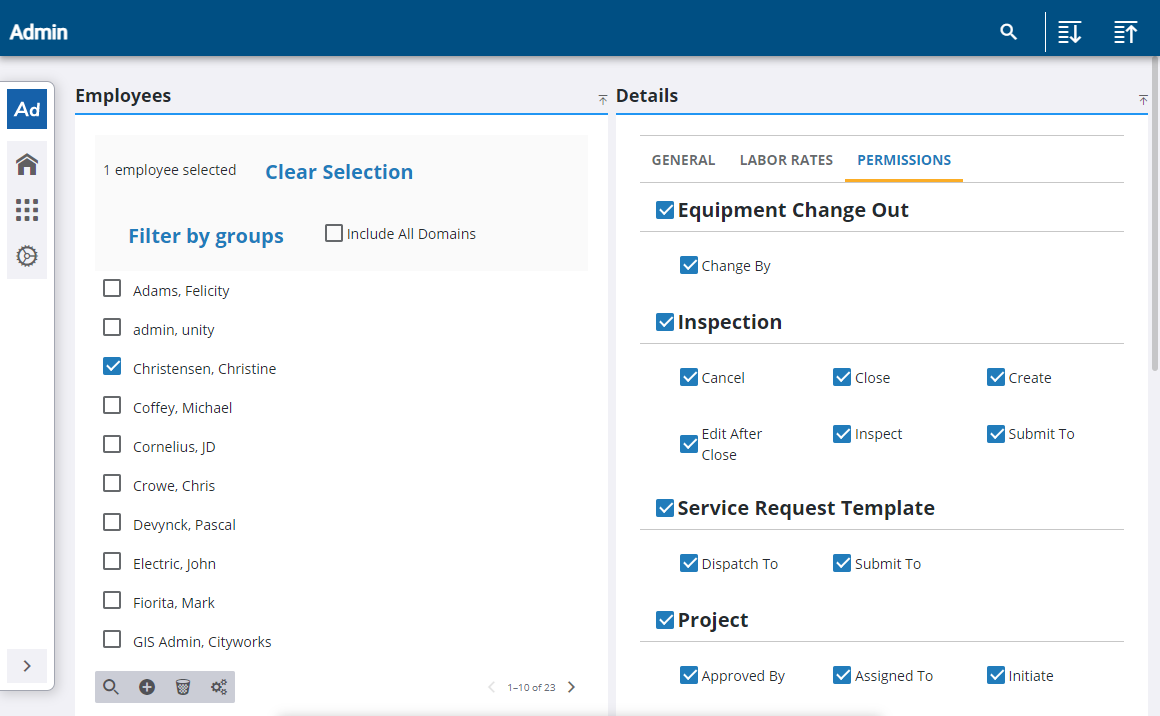
- In Admin on the Admin tab, click Employees.
- Select the user you want to give permissions to.
- In the Details panel, click the Permissions tab.
- Select the check box for each permission you want the user to have. See Assign Permissions to an Employee in the Admin 2.2 Guide for more information.
Your changes are saved automatically.
Licensing
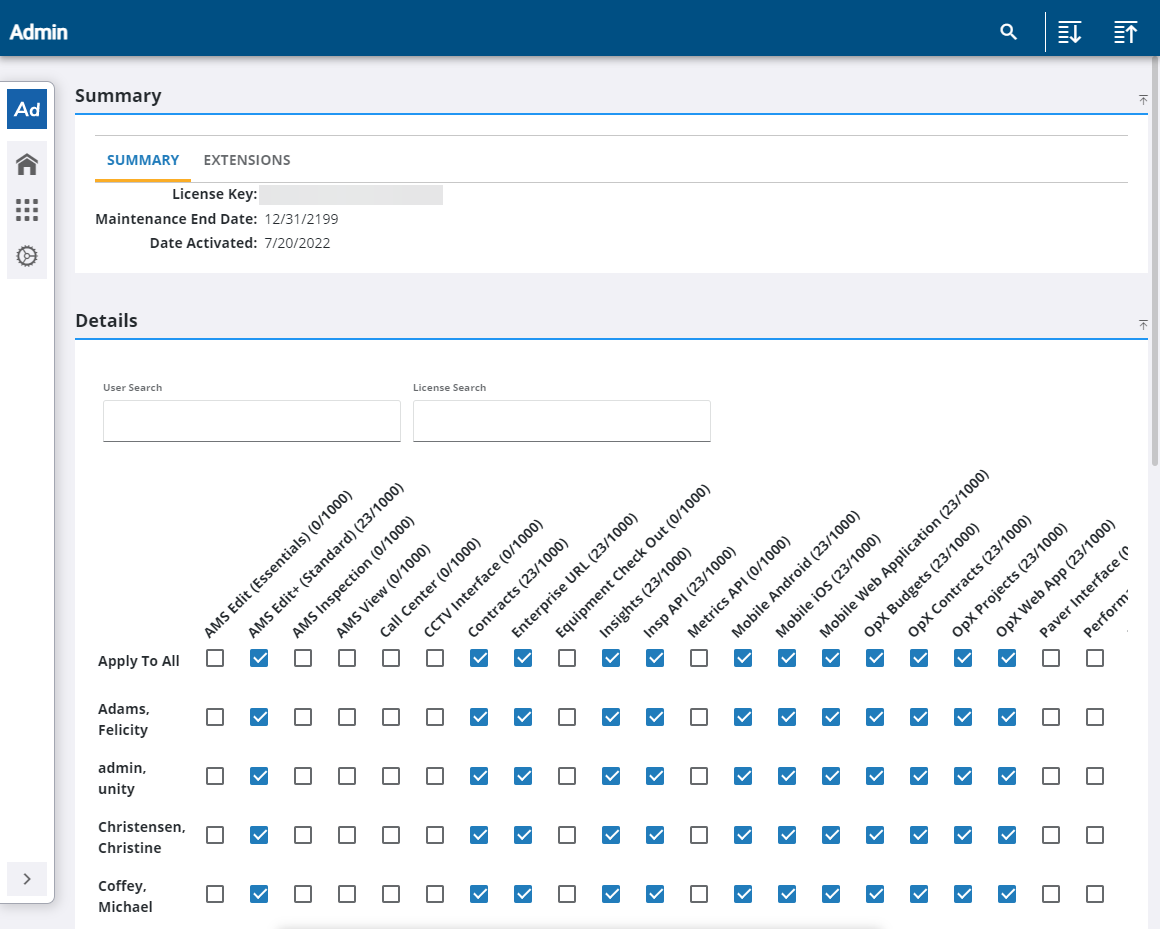
- In Admin on the Admin tab, click Licensing.
- In the Details panel, scroll or use the User Search field to search for the user you want to assign licensing to.
- To assign licenses for the Trimble Unity mobile app, select the AMS Edit+ (Standard) license and the Trimble Unity Mobile license. See Assign Licensing in the Admin 2.2 Guide for more information.
Your changes are saved automatically.
Inspection Template Permissions
Users who will be recording labor and equipment in the Trimble Unity mobile app must be given permissions on the inspection templates.
- In Admin on the Configure tab, click Work Activity Templates and select the Inspection Template option.
- Select the inspection template you want to update.
- Click the Security tab in the Template Details panel, then turn on the Advanced View switch.
- Select the appropriate permissions for each group for View, Add, Update, Delete, and View Cost. You can also select the check box to the left of the group name to assign all the permissions to that group. Alternatively, select the check box directly below View, Add, Update, Delete, or View Cost to give that type of permission to all groups. See Configure Custom Inspection Template Security in the Admin 2.2 Guide for more information.
Your changes are saved automatically.

Work Order Template Permissions
Users who will be recording labor, equipment, and material in the Trimble Unity mobile app must be given permissions on the work order templates.
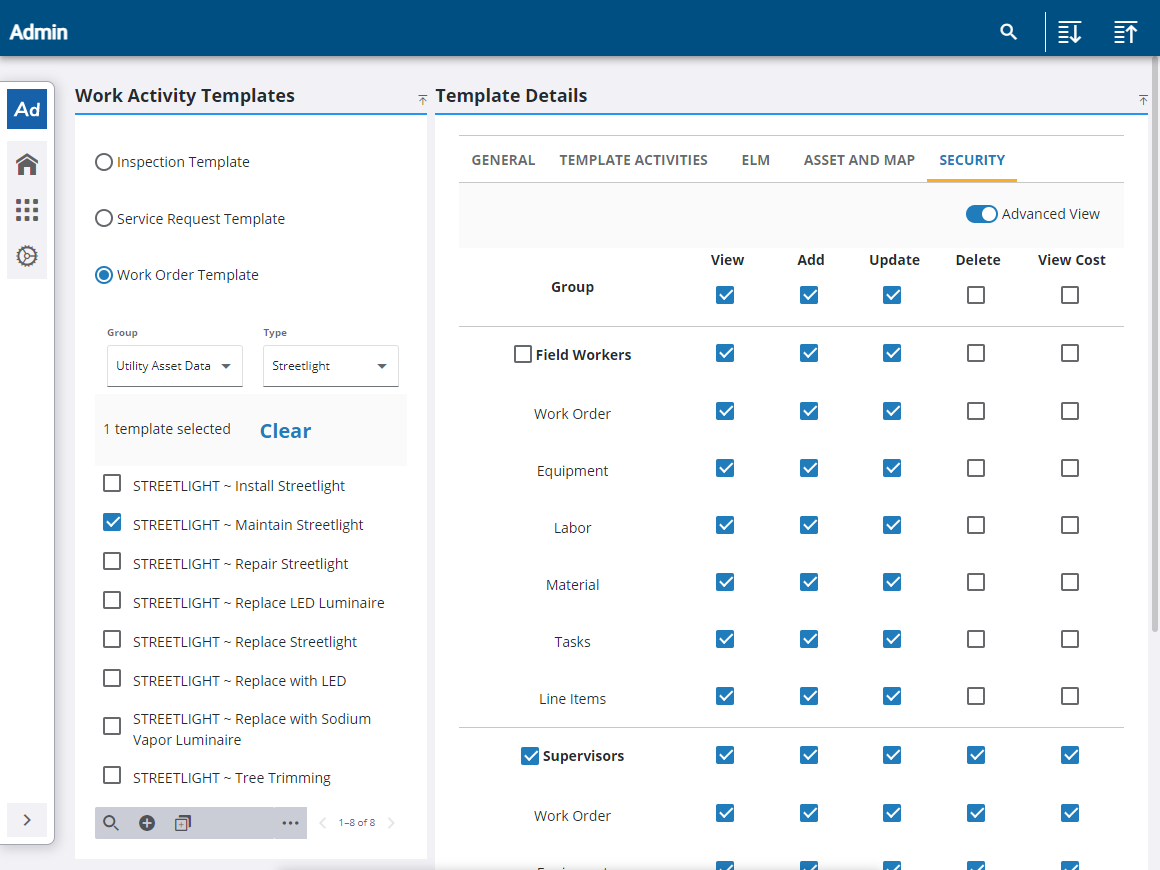
- In Admin on the Configure tab, click Work Activity Templates and select the Work Order Template option.
- Select the work order template you want to update.
- Click the Security tab in the Template Details panel, then turn on the Advanced View switch.
- Select the appropriate permissions for each group for View, Add, Update, Delete, and View Cost. You can also select the check box to the left of the group name to assign all the permissions to that group. Alternatively, select the check box directly below View, Add, Update, Delete, or View Cost to give that type of permission to all groups. See Configure Work Order Template Security in the Admin 2.2 Guide for more information.
Your changes are saved automatically.
Service Request Template Permissions
Users who will be recording labor in the Trimble Unity mobile app must be given permissions on the service request templates.
- In Admin on the Configure tab, click Work Activity Templates and select the Service Request Template option.
- Select the service request template you want to update.
- Click the Security tab in the Template Details panel, then turn on the Advanced View switch.
- Select the appropriate permissions for each group for View, Add, Update, Delete, and View Cost. You can also select the check box to the left of the group name to assign all the permissions to that group. Alternatively, select the check box directly below View, Add, Update, Delete, or View Cost to give that type of permission to all groups. See Configure Service Request Template Security in the Admin 2.2 Guide for more information.
Your changes are saved automatically.