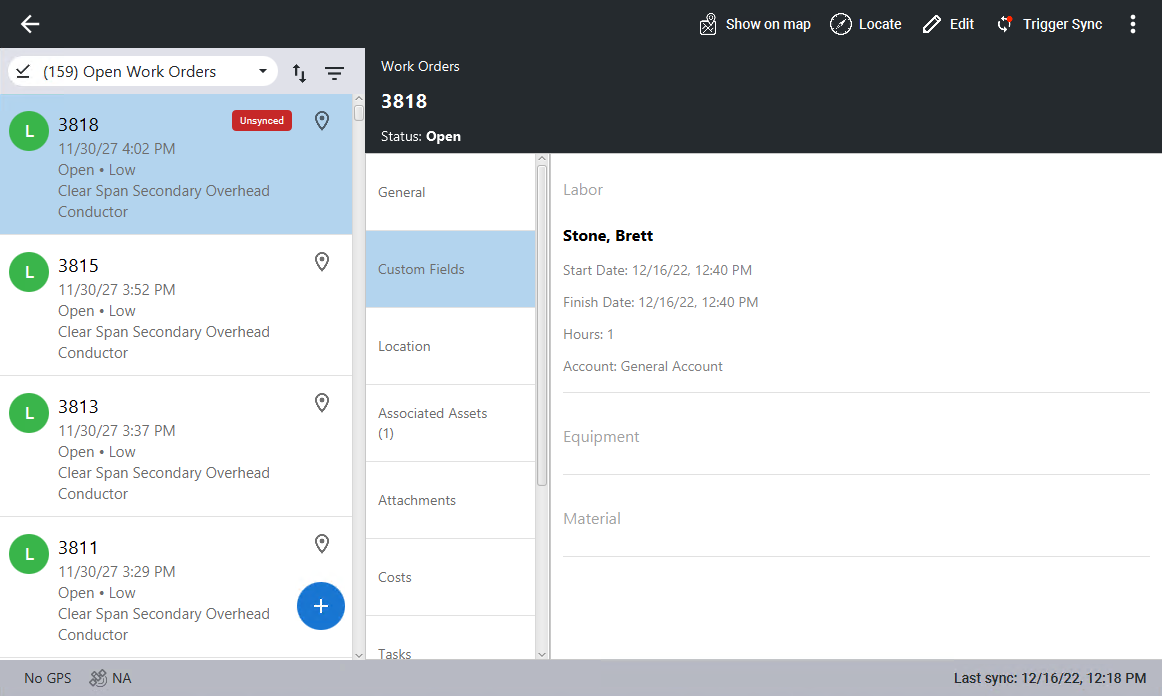
Add Labor Costs
Labor can be added to a work order.
- Open the work order you want to add labor to.
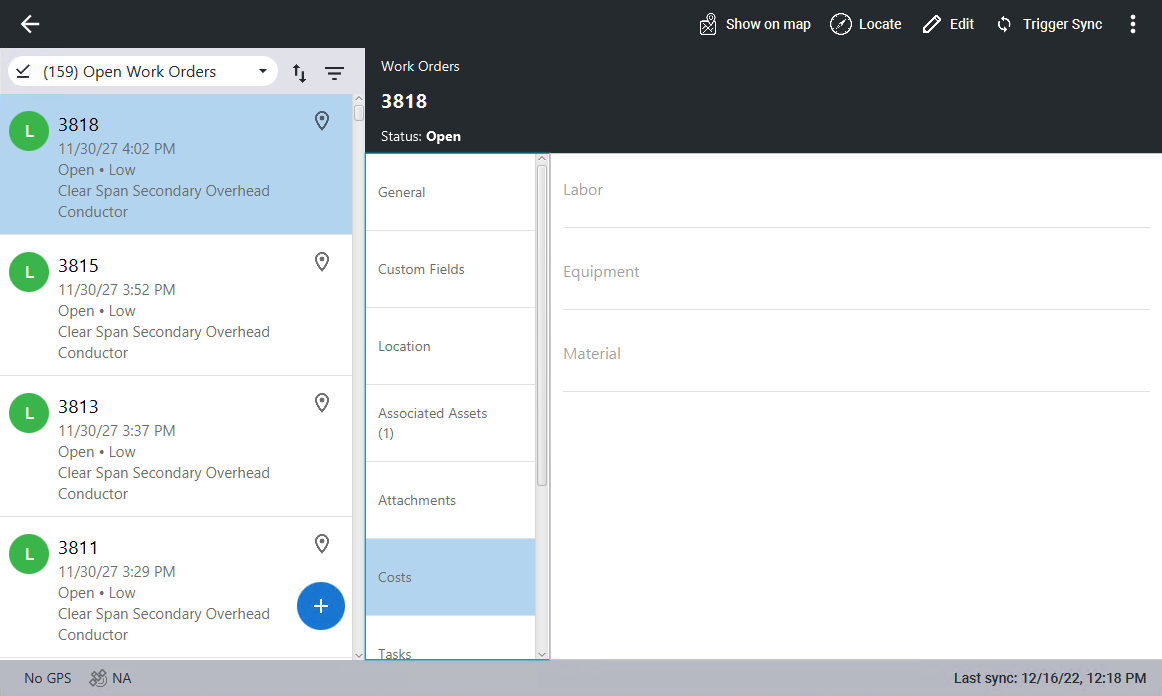
- Click Costs, then click Edit in the top-right corner. If you are already in edit mode, you don't need to click Edit.
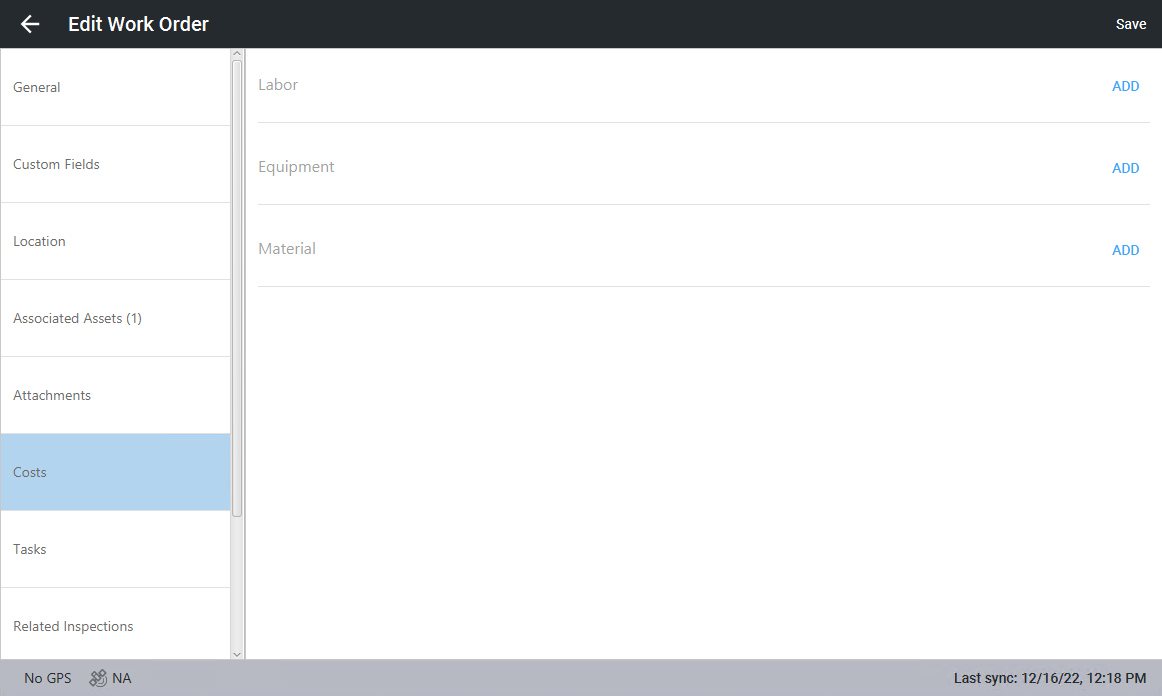
- Click Add in the Labor section.
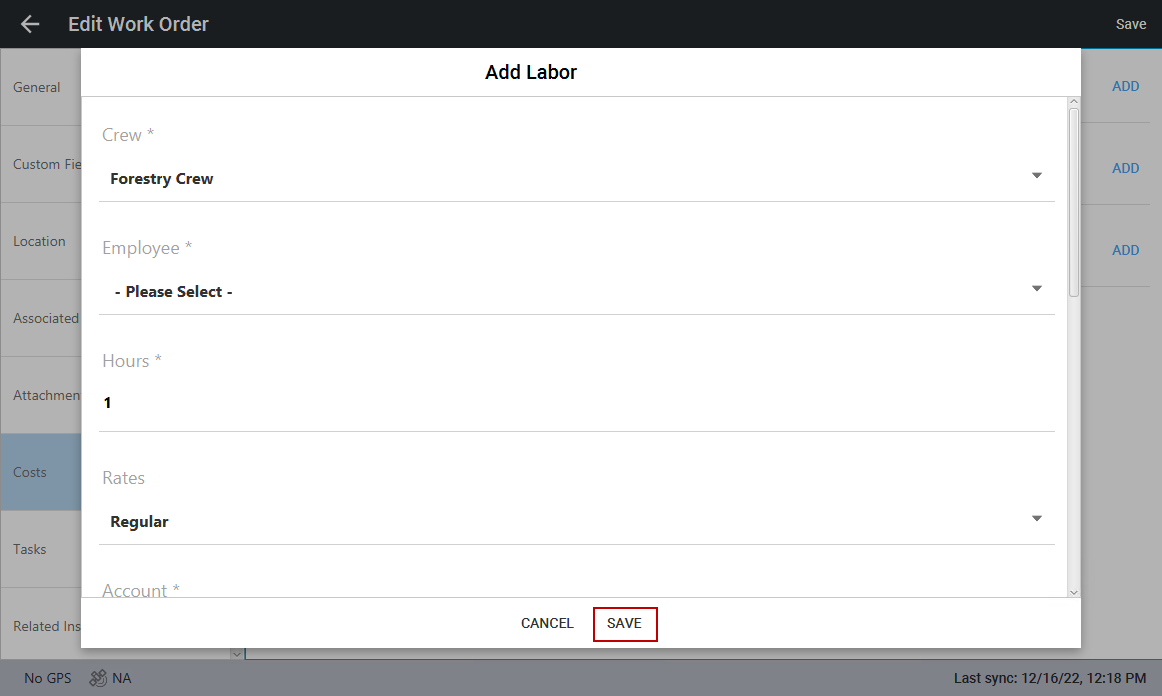
- In the Add Labor panel, click Crew and click to select a crew from the panel that opens.
- Click Employee to select one or more employees from the panel that opens, then click Save.
- Click the Hours field and enter the number of hours of labor that were performed.
- Click Rates to select one or more rates from the panel that opens, then click Save.
- Click Account, then click to select an account from the panel that opens.
- In the Start Date section, click the calendar icon to select the start date, then click the clock icon to select the start time.
- In the Finish Date section, click the calendar icon to select the finish date, then click the clock icon to select the finish time.
- Enter a description of the labor in the Description field.
- Click the Entity field and select the desired entity, then click Save.
- Click Save at the bottom of the panel.
- Click Save in the top-right corner to save the labor to the work order.
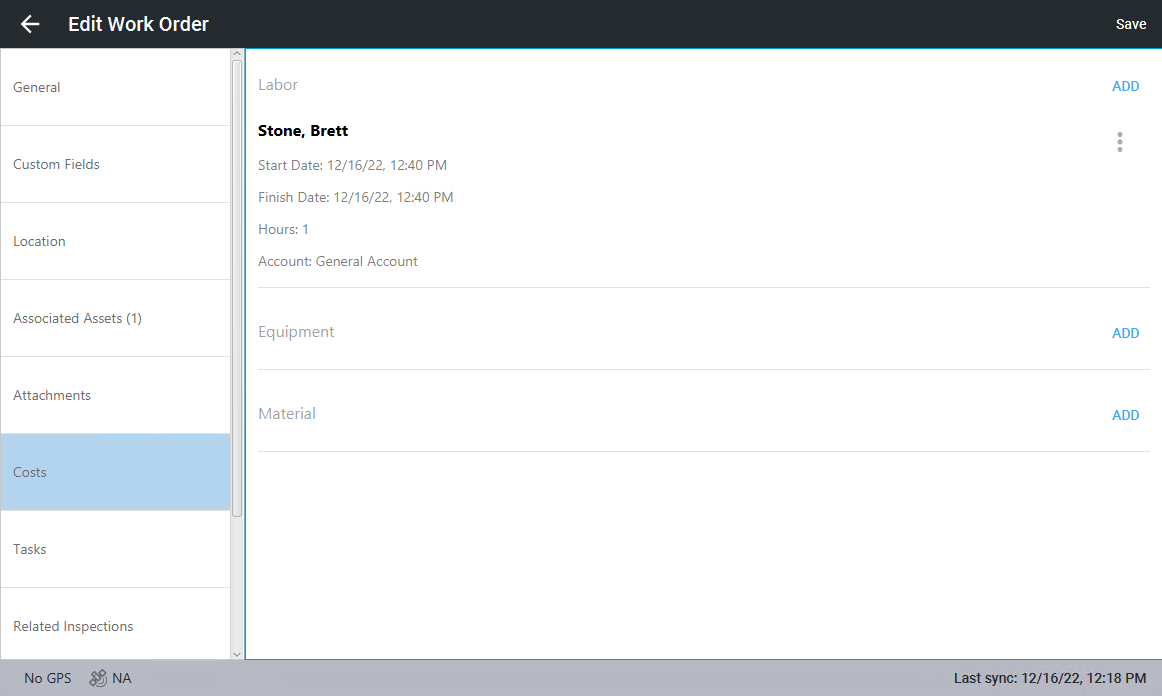
The added labor appears on the work order.