Change the Minimize View for Map Tools
 IMPORTANT: Once you have modified your site, you are responsible for any issues or errors resulting from customizing your site; Azteca Systems, LLC no longer supports those customizations. Per the Cityworks Update and Support Agreement, section 2.3 (f), consulting regarding custom applications created to function with Cityworks is excluded from Cityworks support. Per section 1.2, custom applications mean any scripts, interfaces, reports, or program code. "How to" questions about XML and HTML customization are therefore excluded from support. However, you may post a question on MyCityworks to receive answers to those questions. See Post a Question in the MyCityworks Overview Guide for more information.
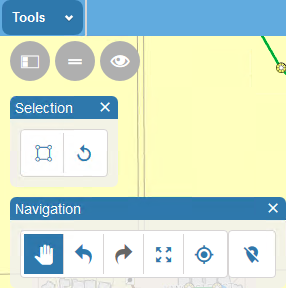
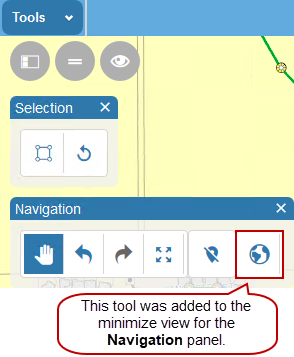
Some map tools, like the Selection and Navigation tools, appear in panels on the map. These panels can be minimized to show the basic or most needed tools. Complete the following to customize which tools will appear when you minimize the Selection and Navigation panels:
|
|
 PREREQUISITES:
- In the NavigationPlugin.xml file, insert the following XML fragment inside the <messages> section:
 NOTE: Use the same steps to customize the SelectionPlugin.xml file.
<message id="locateMeVisibleInMinimal" translate="false">
    <value>false</value>
</message>
<message id="eventLayerConfigureVisibleInMinimal" translate="false">
    <value>true</value>
</message>
 TIP: Look at the corresponding base file to identify the correct ID for the control or layout element that you want to modify. You can easily find the control or layout element you are interested in by searching for a label or some kind of text that appears on the form.
The first line of code instructs Layout Manager to make the My Current Location tool hidden from Navigation panel when the minimize button on the map is clicked. The second line of code instructs Layout Manager to make the Event Layer Configuration tool visible on the Navigation panel when the minimize button on the map is clicked.
TIP: IDs with VisibleInMinimal control the tool's visibility in the map's minimal view. IDs with Text control the tool's tooltip text.
The final XML should look like this:
<?xml version="1.0" encoding="utf-8"?>
<pluginLayout xmlns="http://www.azteca.com/cityworks/layout/pluginLayout">
    <messages>
        <message id="locateMeVisibleInMinimal" translate="false">
            <value>false</value>
        </message>
        <message id="eventLayerConfigureVisibleInMinimal" translate="false">
            <value>true</value>
        </message>
    </messages>
</pluginLayout>
Default Minimize Tools
Custom Minimize Tools
TIP: See