Hide Controls
 IMPORTANT: Once you have modified your site, you are responsible for any issues or errors resulting from customizing your site; Azteca Systems, LLC no longer supports those customizations. Per the Cityworks Update and Support Agreement, section 2.3 (f), consulting regarding custom applications created to function with Cityworks is excluded from Cityworks support. Per section 1.2, custom applications mean any scripts, interfaces, reports, or program code. "How to" questions about XML and HTML customization are therefore excluded from support. However, you may post a question on MyCityworks to receive answers to those questions. See Post a Question in the MyCityworks Overview Guide for more information.
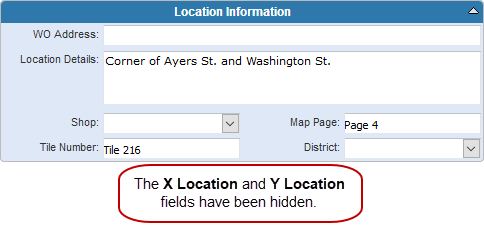
In this example, we will modify the work order general page by hiding the X Location and Y Location controls. See
|
|
 PREREQUISITES:
IMPORTANT: While you can modify any of the base XML files (for example WOGeneralBase.xml), we strongly recommend that you do not change them. Instead, we recommend creating a theme folder and then creating overriding XML files in your theme folder, like WOGeneral.xml. By creating overriding XML files, you are protecting your modifications by allowing changes and new features to be applied to the base Layout Manager files. Your modifications are automatically merged with the base layout files each time a page is visited.
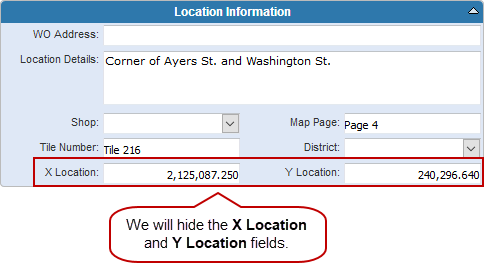
- In the WOGeneral.xml file, insert the following XML fragment inside the <controls> section:
<control id="txtWOXCoordinate" visible="false"></control>
<control id="txtWOYCoordinate" visible="false"></control>
 TIP: Look at the corresponding base file to identify the correct ID for the control or layout element that you want to modify. You can easily find the control or layout element you are interested in by searching for a label or some kind of text that appears on the form.
This line of code instructs the Layout Manager to select two controls: one with an ID of txtWOXCoordinate and another with an ID of txtWOYCoordinate. All other attributes, such as the visible attribute, are then applied to the selected controls. Also notice that the associated labels and row are also hidden.
The final XML file should look like this:
<?xml version="1.0" encoding="utf-8" ?>
<webLayout xmlns="http://www.azteca.com/cityworks/layout/webLayout">
    <!--USE THIS FILE AS A TEMPLATE TO OVERRIDE BASE XML FILES.
    VIEW MYCITYWORKS.COM OR CONTACT SUPPORT FOR MORE INFORMATION. -->
    <controls>
        <control id="txtWOXCoordinate" visible="false"></control>
        <control id="txtWOYCoordinate" visible="false"></control>
    </controls>
    <layout>
    </layout>
    <messages>
    </messages>
</webLayout>- Save the XML file.
- Refresh the browser window showing the work order in Office to view the changes.