Filter the Work
The work that populates in Workload can be filtered by activity type, date range, saved queries, status, task types, and inspectors.
- At the top of each page, click the filter icon.
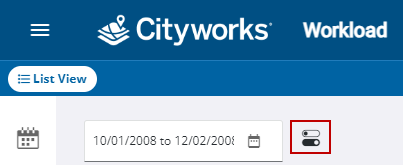
The Filter panel opens.
- Click the Activity Type drop-down list to filter by activity type.
 Case Task
- In the From field, type the date you want the range to start at, or click the calendar icon to select the date from the calendar.
- In the To field, type the date you want the range to end at, or click the calendar icon to select the date from the calendar.
 NOTE: If the date range entered is greater than or equal to ten days, a warning panel opens saying Limit Exceeded. We recommend reducing the number of days and/or the number of inspectors in the filter to lessen the time it takes to load the search.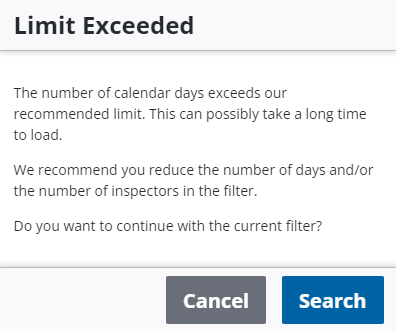
- Click Criteria to filter your search by status, task types, and inspectors.
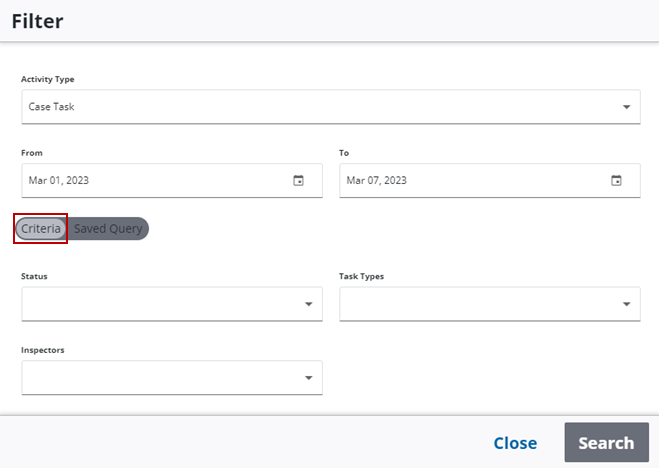
- Select a Status from the drop-down list.
- Select a Task Type from the drop-down list.
- Select an Inspector from the drop-down list.
- Click Saved Query to filter your search by a saved query or inspectors.
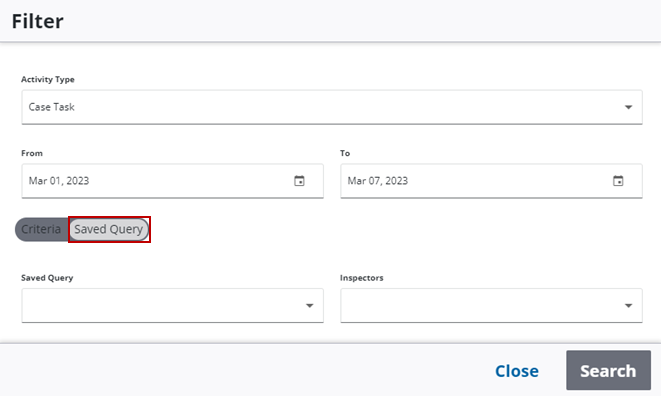
- Select a Saved Query from the drop-down list.
NOTE: A date range is required when doing a saved query search. It limits the query results a saved query normally returns.
- Select an Inspector from the drop-down list.
- Click Search.
The work populates based on the selected filters.
NOTE: The Case Number, Work Order ID, and Inspection ID are links that open the work activity in Respond if the user has access to Respond.
Work Order
- In the From field, type the date you want the range to start at, or click the calendar icon to select the date from the calendar.
- In the To field, type the date you want the range to end at, or click the calendar icon to select the date from the calendar.
- Click Criteria to filter your search by status, and employees or crews.
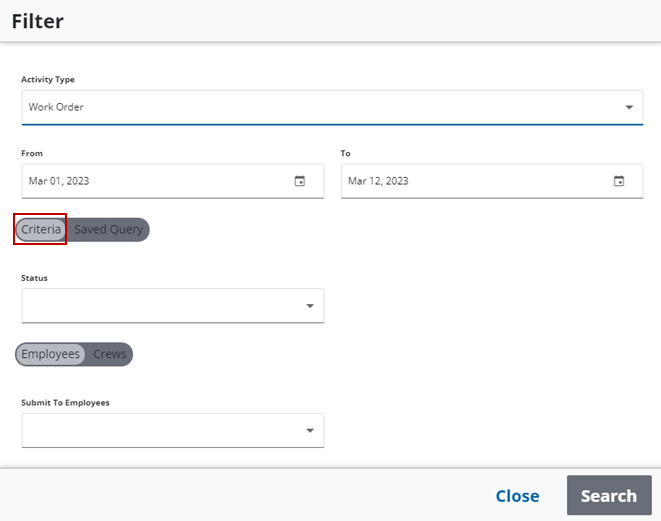
- Select a Status from the drop-down list.
- Click Saved Query to filter your search by a saved query.
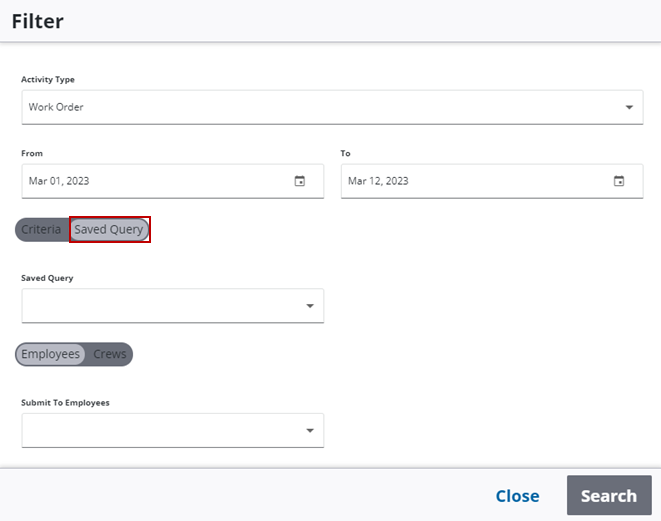
- Click Employees to select from the Submit to Employees drop-down list.
- Click Crews to select from the Crews drop-down list.
NOTE: A date range is required when doing a saved query search. It limits the query results a saved query normally returns.
- Click Search.
The work populates based on the selected filters.
NOTE: The Case Number, Work Order ID, and Inspection ID are links that open the work activity in Respond if the user has access to Respond.
Inspection
- In the From field, type the date you want the range to start at, or click the calendar icon to select the date from the calendar.
- In the To field, type the date you want the range to end at, or click the calendar icon to select the date from the calendar.
- Click Criteria to filter your search by status and employees.
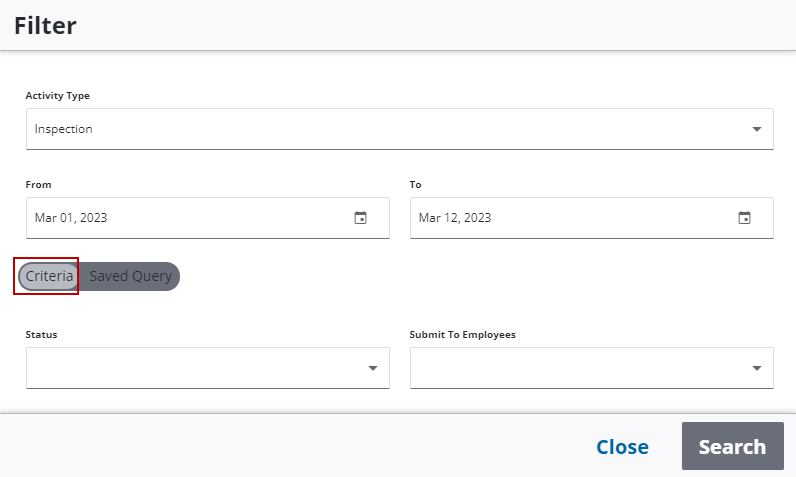
- Select a Status from the drop-down list.
- Select an employee from the Submit to Employees drop-down list.
- Click Saved Query to filter your search by a saved query.
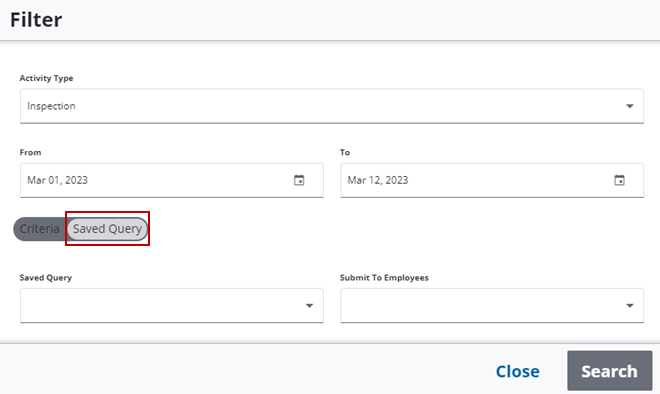
- Select a Saved Query from the drop-down list.
NOTE: A date range is required when doing a saved query search. It limits the query results a saved query normally returns.
- Select an employee from the Submit to Employees drop-down list.
- Click Search.
The work populates based on the selected filters.
NOTE: The Case Number, Work Order ID, and Inspection ID are links that open the work activity in Respond if the user has access to Respond.