Add or Edit the Actual Start and Finish Date and Time
The date and time for the actual start and finish of the work order can be added and edited.
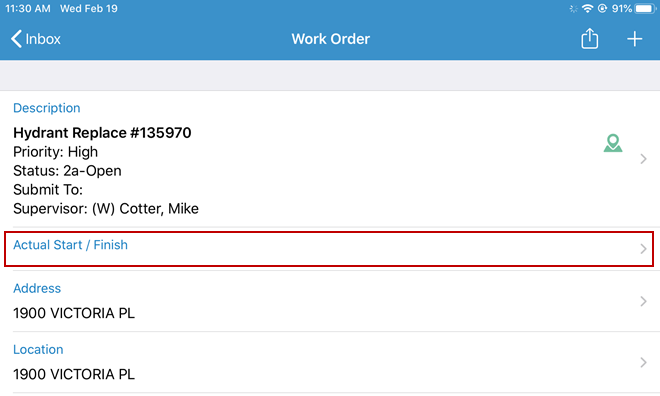
- Open a work order.
- Tap Actual Start / Finish.
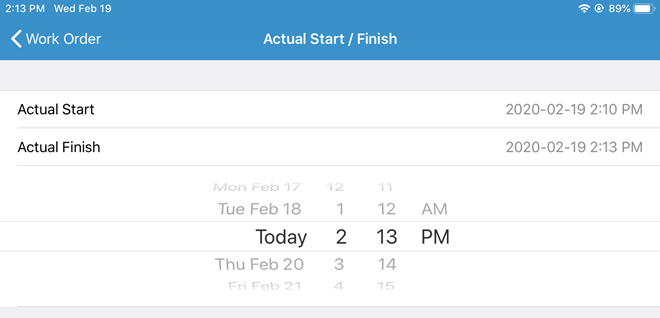
- Tap Actual Start to manually enter the start date and time. Once you select a date on the calendar, select the time on the clock and tap OK.
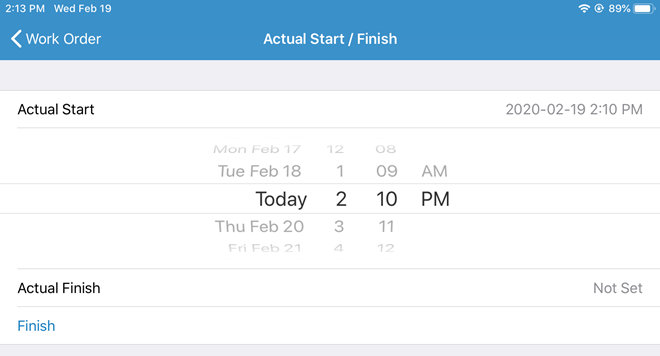
- Tap Actual Finish to manually enter the finish date and time. Once you select a date on the calendar, select the time on the clock and tap OK.
- Alternatively, tap Start to populate the current date and time.
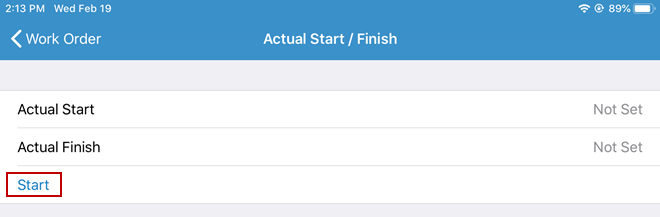
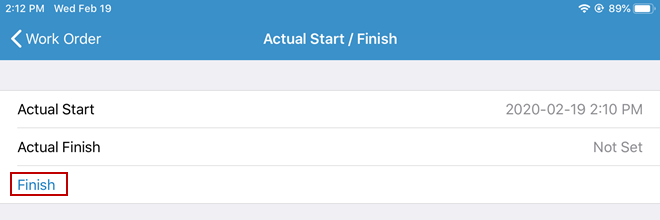
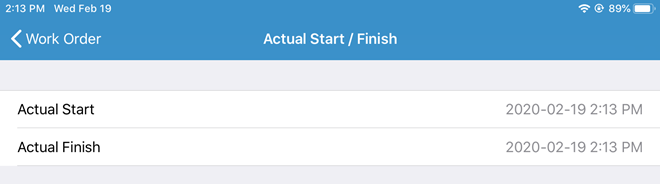
- Tap Finish when the work order is completed to populate the current date and time.