Map
The map shows all work orders, inspections, service requests, and PLL tasks based on the saved searches or queries that are configured to appear in the app. See Add Saved Searches to the Mobile Inbox in the Designer Office Companion 23 Guide, Enable Queries for the Mobile Inbox in the Respond 5.3 Guide, and Add Queries to the Mobile Inbox in the Admin 3.3 Guide for more information.
The map uses the Mobile map service in Admin and supports sync-enabled feature layers. See Add Services to a Service Definition in the Admin 3.3 Guide for more information on designating a GIS service for use in the mobile apps.
Mobile map packages can be used to contain asset information for offline use. See Add a Mobile Map Package in the Admin 3.3 Guide for more information.
 NOTE: Mobile map packages support relationships.
 BEST PRACTICE: When configuring web maps and map service definitions, do not group features within a web map meant for mobile use.
If you are using another system that can open this app and automatically select assets, be aware that the entity type, asset alias, and entity UIDs configured in Admin cannot contain spaces since those values are passed from the other system to the app via a URL.
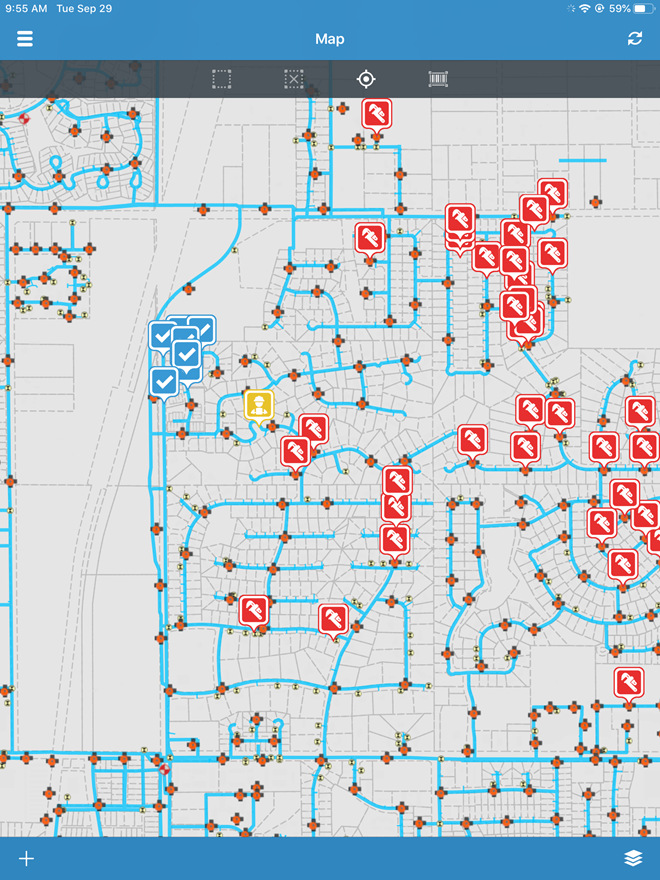
Tasks, inspections, service requests, and work orders appear as layers on the map. These layers can be made visible in the Layers list.

The visibility of asset layers that appear on the map can also be controlled in the Layers list.
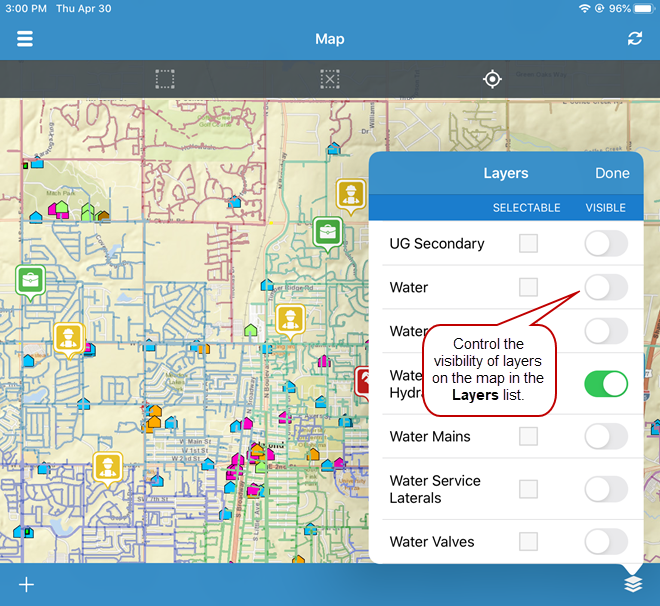
- To make all layers visible at once,
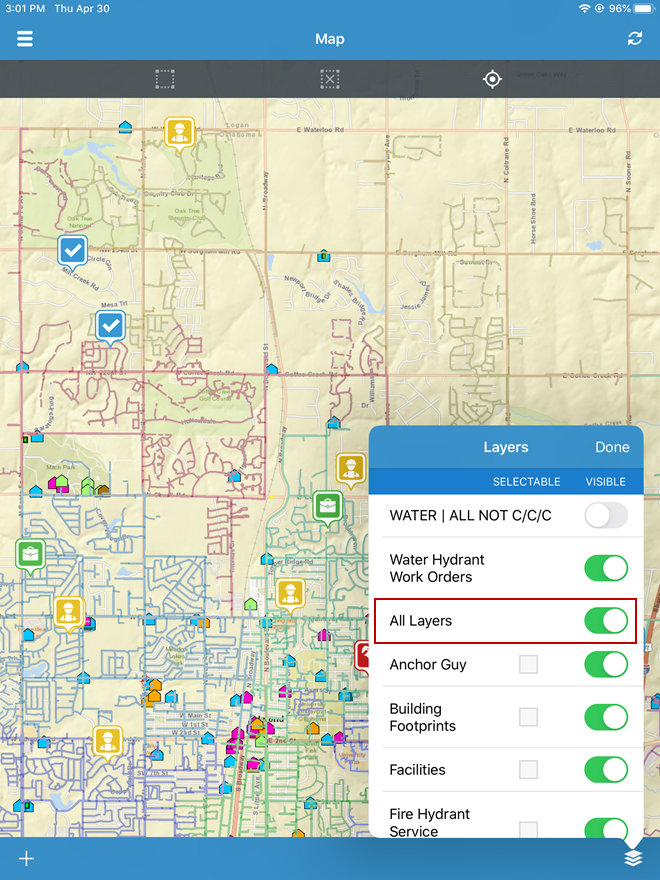
- To make all layers invisible at once,

NOTE: If you are using a tiled map, no asset layers appear. If you are using a dynamic map, you will have multiple layers to choose from.