View or Edit Universal Custom Fields
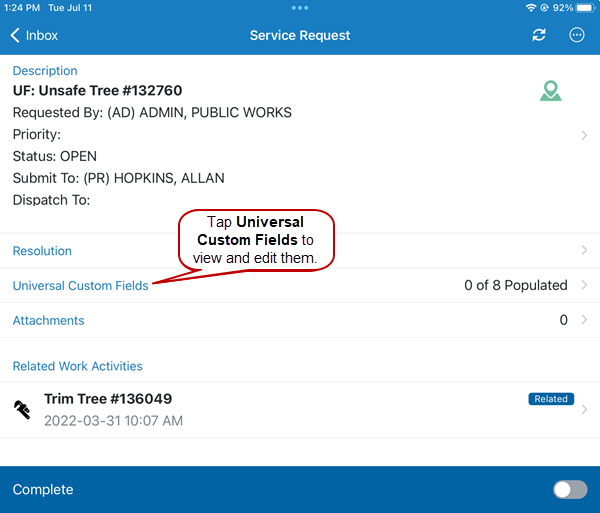
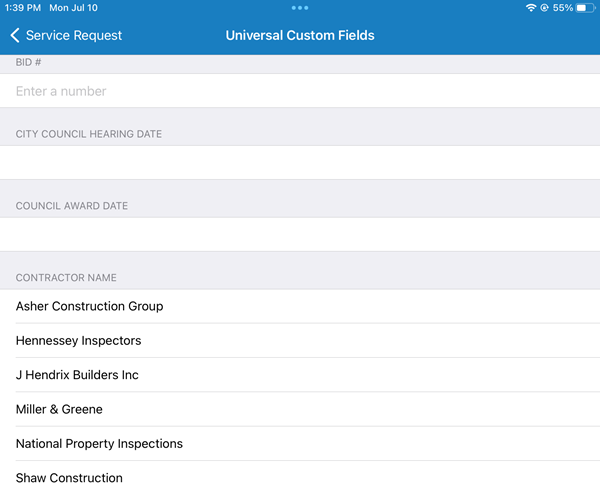
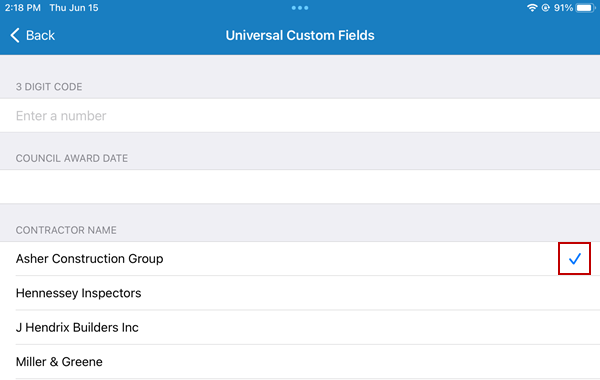
Universal Custom Fields displays any universal custom fields associated with the service request.
 NOTE: Universal Custom Fields shows the universal custom fields that are configured for the category associated with the service request. If universal custom fields are not configured, the field is hidden by default on the service request.
- Open a service request.
-