Add an Attachment

You can add attachments to a work order.

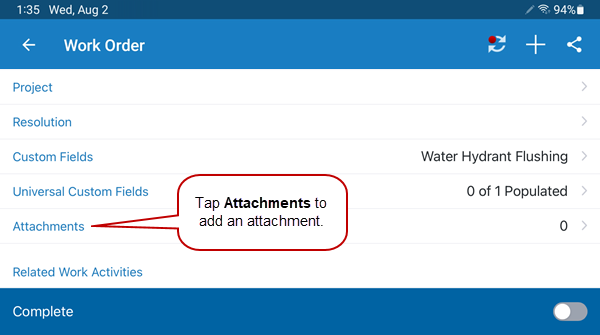
  1. Open a work order.
  2. Tap Attachments.

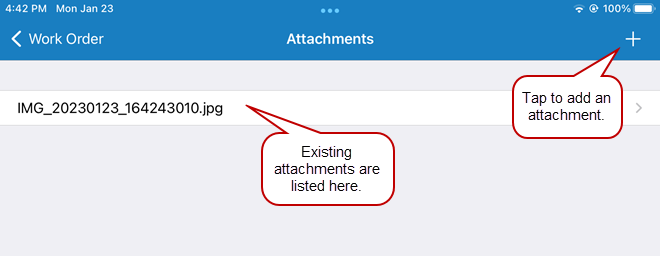
  1. Tap the add icon in the upper-right corner.

Existing attachments appear in the list.
  1. Tap Take Photo to take a picture and add it to the work order.
  2. Tap Record Video to record a video and add it to the work order.
  3. Tap Choose Existing Photo to choose an image from your current files to attach to the work order.

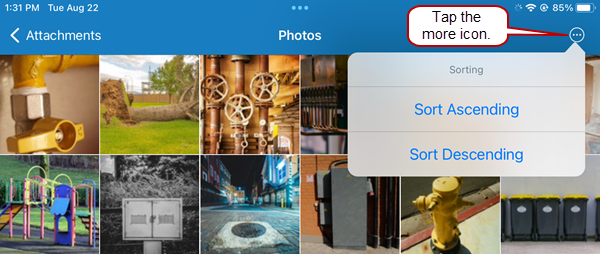
NOTE: When viewing existing photos, tap the more icon in the heading to sort the files in ascending or descending order.

  1. Tap Browse to find or attach documents, videos, or audio files to the work order.

  1. To attach multiple files at the same time, tap any you want to attach and tap Done.