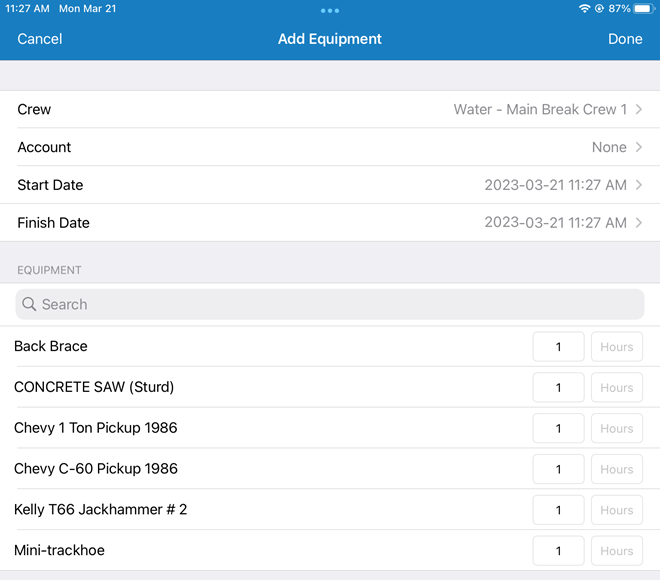
Add Equipment
You can add equipment to a work order in the mobile apps.
|
|
 PREREQUISITES:
- Open a work order.
-
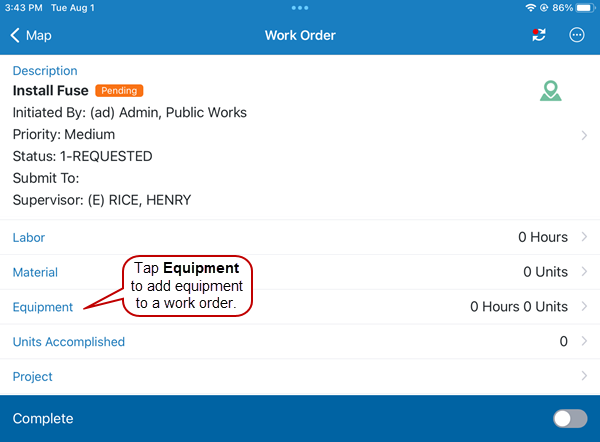
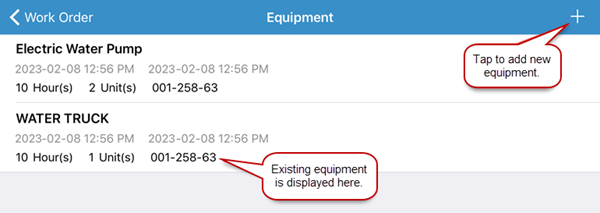
- Select a Crew. Once a crew is selected, the equipment associated with the crew displays.
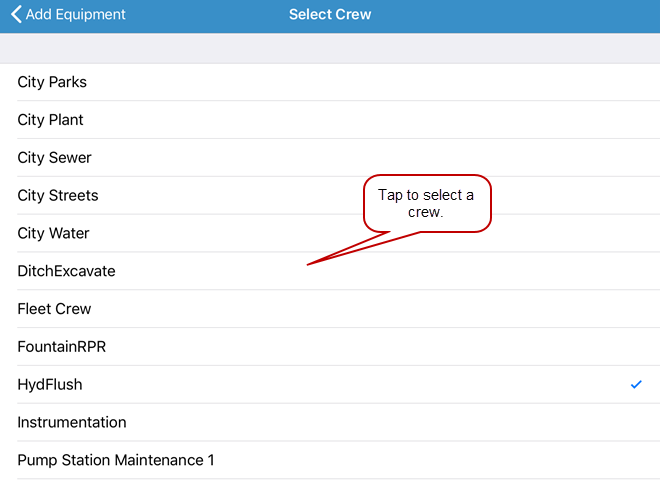
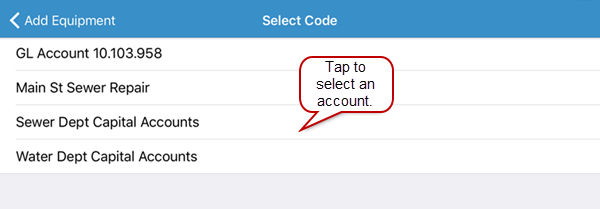
- Select an Account out of which the equipment is paid.
- Use the Search field to filter the list of equipment.
- The Units fields have a default value of 1. Change the Units and add Hours to the right of the desired equipment by tapping in each field. Enter the number of units and hours you wish to add to each equipment item.